
Camera notebook · Direction and framing
AI Camera Movement Prompts
Write AI camera movement prompts as a path: where the view begins, which way it moves and where it should settle. Camera terms help describe that path, but H3 Max interprets text rather than following a measured camera rig.
Six paths you can describe
The diagrams below are direction sketches. They illustrate the requested movement, not a simulated trajectory or a promise about the resulting video. Begin with one path that supports the subject already in view.
- Fixed camera
- Keep the viewpoint still. Let a blink, a leaf or a reflection provide the visible action.
- Pan
- Turn the view horizontally from its starting position. Name left or right and a modest endpoint.
- Push in
- Move toward the subject. Decide which edges should remain visible in the closer framing.
- Pull back
- Move away from the subject. More surroundings need to appear beyond the opening view.
- Tilt
- Turn the view upward or downward. Specify what the viewer should reach, such as a visible bottle cap.
- Small orbit
- Travel around part of the subject while facing it. New angles can reveal unsupported surfaces.
In physical filming, a pan turns the camera while a lateral tracking move changes its position. A push moves the camera forward; a zoom changes framing through the lens. AI camera movement prompts can use these distinctions to state intent, though the model may blend the effects.
If the difference matters to your edit, describe what should change in the picture. “The camera moves forward while the bottle remains still” communicates more than a bare “cinematic zoom.” Review the background as well as the subject to see how the model interpreted the move.
Push and pull from the same bottle image
These two trials keep the input, requested duration and resolution alike while changing the camera brief. In the push result, the bottle occupies more of the later frame. The pull result leaves more surrounding space. They show a useful difference in framing, rather than precise reproduction of a specified distance.
Compare AI camera movement prompts by the job each ending performs. A push can direct attention toward a label area. A pull can leave the product within a wider scene. Neither direction is universally preferable; choose the ending your next shot or overlay needs.
Push toward the existing view
A slow camera push toward the bottle. Preserve its silhouette, cap, label and background. The product remains stationary. Keep reflections restrained. One continuous shot with no new text, claims or speech.
Recorded Image-mode request. The motion has no numeric distance control.
Use this promptPull back a short distance
The camera slowly pulls back a short distance, leaving more breathing room around the bottle. Preserve the bottle, cap, label, material and background. No product rotation, new objects, captions or speech.
Recorded Image-mode request. A wider view requires generated surroundings beyond the initial framing.
Use this promptA movement is different from an angle
“Low angle” tells you where the camera looks from. “Close-up” describes how tightly the subject fills the image. Neither phrase requires motion. You can have a fixed close-up or a moving wide shot, so avoid treating these descriptions as interchangeable.
AI camera movement prompts become more readable when you state the opening view first and then give it one action. In Text mode, “a low view of a ceramic bowl; the camera slowly approaches” supplies both. In Image mode, the photograph already establishes that opening angle.
When a source photo looks down on a product, asking for a ground-level shot requires the model to construct a substantially different view. If you need the lower angle to be accurate, provide a photograph taken from that angle instead.
How much of the object can the photo establish?
The broad chair orbit travels far enough to reveal the back. The input is a single view, so those later surfaces include generated interpretation. This is the main limit of AI camera movement prompts for products: a convincing path does not establish accurate hidden geometry.
Use the clip below to locate the point where the source stops giving you direct evidence. Watch the legs and their joints, the rear of the seat and the chair's contact with the floor. Compare these with the real item before treating the video as a product view.
Starting image
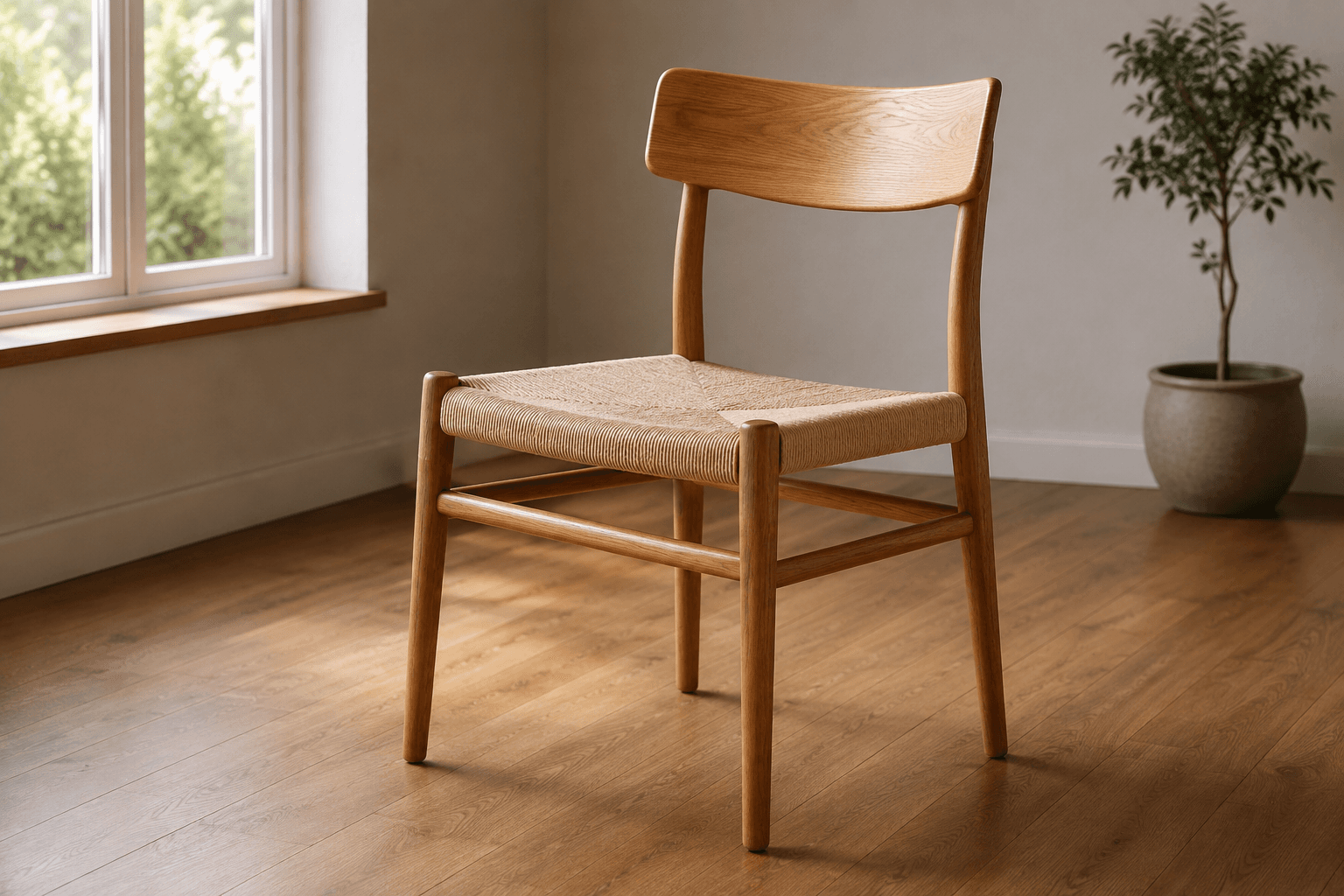
Generated clip
Reduce the path before adding restrictions
A request to preserve everything still leaves the model with missing views. Try a shorter arc or a small push from the original angle. That reduces how much new surface must be invented, although it cannot guarantee that every visible feature will remain unchanged.
A full rotation is especially demanding for jewelry, hardware or patterned clothing. Details can disappear behind the object and return differently. AI camera movement prompts should match the evidence you have, not the amount of spectacle a stock camera term suggests.
Use a fixed view as a baseline
When you cannot tell whether a problem comes from the subject's action or the camera, hold the camera still for the next trial. The cat examples pair a fixed request with a pan request from the same picture. Check posture and room edges separately.
AI camera movement prompts do not have to create constant camera travel. A brief hold can make a small action easier to see, and it gives an editor a usable moment before the next cut. For a five-second trial, a single modest move with time to settle is a sensible starting brief.
Turn the path into your next request
Write the starting view, one direction, a pace and an ending condition. Remove any extra movement that does not help the viewer notice the chosen detail. Keep duration and resolution unchanged while comparing revisions, then review the result at normal speed and while paused.
Can keywords guarantee an exact camera trajectory?
No. AI camera movement prompts are interpreted text. H3 Max does not expose measured camera positions or keyframed paths. If an exact movement is essential, judge the output against that requirement and reject versions that miss it.
Which mode should I open?
Use Image to Video to begin with a known composition. Use Text to Video when the scene itself needs to be created from words. Both support 5–15 second generation; only Text mode lets you choose a ratio independently of a source image.
For additional motion vocabulary, consult Runway's image prompting guide. Keep platform-specific controls separate from the plain-language direction illustrated here.