
Mode finder · Start with what you have
Text to Video vs Image to Video
The practical choice in text to video vs image to video is whether your opening picture already exists. Use Text mode to invent a scene from words. Use Image mode to animate a chosen picture with your own motion direction. For a product photo without a written brief, choose Product Agent.
Choose a starting route
- I have an idea, but no required picture. Open Text to Video and describe the subject, setting and action. Select the output frame shape in the tool.
- I have a picture and a specific motion in mind. Open Image to Video, upload the picture and describe how it should move.
- I have a product photo and want a showcase starting point. Open Product Agent. Upload the photo and let the mode prepare its direction.
All three routes generate short clips from 5 to 15 seconds at 480P or 768P. Choosing a different input mode does not add subtitles, an editing timeline or automatic publishing. Pick the route for the part of the shot you need to control.
When comparing text to video vs image to video, avoid treating the image as a universal quality switch. It provides a specific starting composition. Later movement is still generated, and the model can change features that matter to your project.
The same job: make a short ceramic mug shot
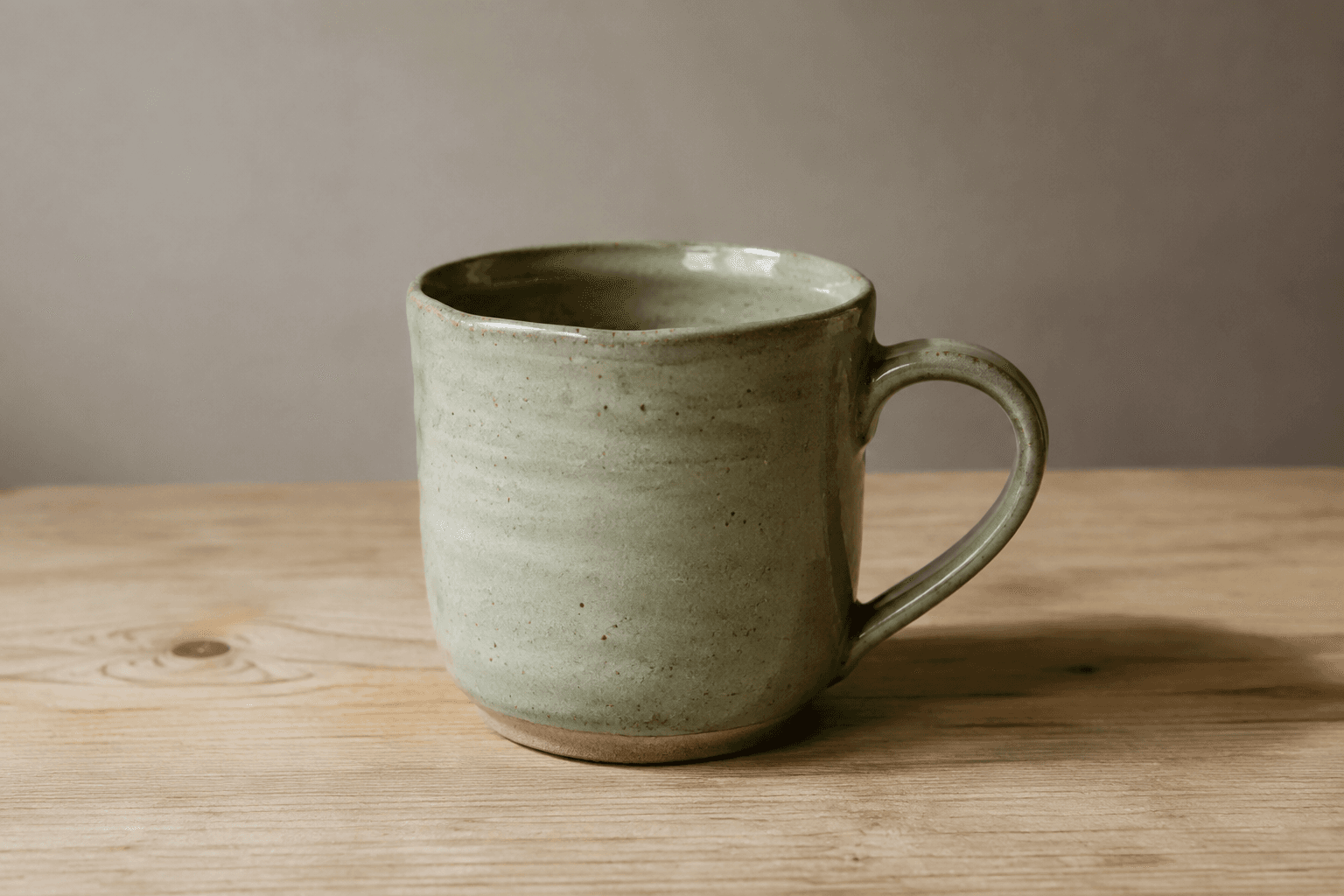
Suppose you need a mug beside a window for a short edit. If any plausible mug will do, a written scene may be enough. If the clip must show a particular handle, glaze and silhouette, start with a photograph of that mug.
The examples below address that broad creative job through separate requests. The Text trial uses a 4:3 frame, while the supplied mug source uses 3:2. The source is an AI-created illustration, not a photographed commercial item. Different inputs, prompts and framing make these illustrative paths, not a controlled ranking of the modes.
Text: invent the opening scene
The written brief gives the model a mug, a wooden surface, daylight and a slow approach. Its green mug has a different body, handle and base from the supplied image used in the other routes. That freedom is useful for a generic atmosphere shot, especially when you do not have a suitable source photograph.
Inspect whether the result communicates the scene you needed. Do not compare its invented handle with your actual product and assume it was supposed to match. If exact product identity is the requirement, the input choice needs to change.
Starting image
Generated clip
Image: keep the supplied starting picture
The source establishes the visible handle, glaze, background and initial viewpoint. The prompt asks for a slow camera push while the mug remains stationary. This gives you a known opening and your own written motion direction.
Review the handle and rim through the entire movement. The starting image guides the shot, but it does not lock every later pixel. A request for a full rotation would require more unseen information than a small approach from this view.
Product Agent: delegate the written direction
This route takes the product image and prepares a showcase brief. It is convenient when you want a first product clip without deciding the exact wording of the camera request. The result still needs to represent the photographed item accurately enough for your intended use.
If you want to replace that direction with your own sentence, switch to Image mode. Product Agent does not expose a custom prompt box. This third route is an important practical distinction when evaluating text to video vs image to video in H3 Max.
Text to video vs image to video: compare the controls
Each mode asks you to make different decisions before generation. Use the table to locate the control you need rather than guessing from the tool name. If two requirements conflict, decide which one is necessary for the next shot.
| Decision | Text to Video | Image to Video | Product Agent |
|---|---|---|---|
| Required input | Written scene and action | Starting image and written motion | Product starting image |
| Opening appearance | Generated from words | Guided by the uploaded photo | Guided by the product photo |
| Custom prompt | Yes | Yes | No; direction is prepared automatically |
| Frame shape | Six selectable ratios | Follows the starting image | Follows the starting image |
| Optional ending image | No | No | Single mode only |
| Batch product generation | No | No | Separate clips from multiple product images |
| Length and resolution | 5–15 seconds, 480P/768P | 5–15 seconds, 480P/768P | 5–15 seconds, 480P/768P |
For example, a request for a custom camera instruction plus an ending image cannot be expressed as that combination in the current interface. Image mode supports the custom prompt; Single Product Agent supports the optional end frame. Choose the route matching the requirement you cannot give up.
Decide what must stay recognizable
A background shot of a rainy street can tolerate invented houses. A product listing cannot tolerate an invented fastening if it changes what the buyer believes they will receive. This difference often settles text to video vs image to video more quickly than a general preference for either mode.
Use a photograph when its visible details are part of the requirement. Keep the requested movement within a view you can check. A source photo is useful evidence for the opening, but it does not supply the rear of an object or prove how a hidden mechanism works.
Use words when creating a new scene is the aim and exact identity is unnecessary. You still need to check the result for distracting text, implausible structures or motion that does not serve the edit. Freedom to invent is compatible with careful selection.
Switch modes when the requirement changes
You might begin with a text scene to explore an atmosphere, then move to a product photograph when the actual item is ready. That is a new input and a new generation. Do not expect a switch to preserve an earlier clip's exact motion or appearance.
Likewise, if a Product Agent result suggests a useful shot but you want a more specific camera move, write a short direction in Image to Video using the original product source. The material-based prompt examples offer starting points for that transition.
Plan the cost around requested duration and resolution. A five-second request costs 25 credits at 480P or 40 at 768P. A mode change still starts a separate task when you submit it; comparing options on this page does not generate anything.
Is an image always better than a text prompt?
No. An image establishes a known starting point, which helps when the appearance matters. A poor image can also contain blur, obstructed details or a composition unsuited to the intended motion. Text mode can be more suitable when you need a scene that you have not photographed.
Why does Product Agent not need a prompt?
It prepares product-showcase direction from the supplied image and chosen settings. You trade manual wording for that prepared starting point. If you need to author the movement yourself, choose Image mode instead.
The general input distinction is described in Runway's text guide and image guide. The table above reflects H3 Max's actual controls, including its separate Product Agent route.
Choose the input you have, the control you need and a shot you can evaluate. The route links at the top open the matching generator so you can review the request before submitting.