
Motion workshop · Image mode
Image to Video Prompts for Natural Motion
Write image to video prompts around what changes after the photograph. The image already gives the model a subject, composition and lighting. Your most useful addition is a clear movement and a limit on how far that movement should go.
One cat, two camera requests
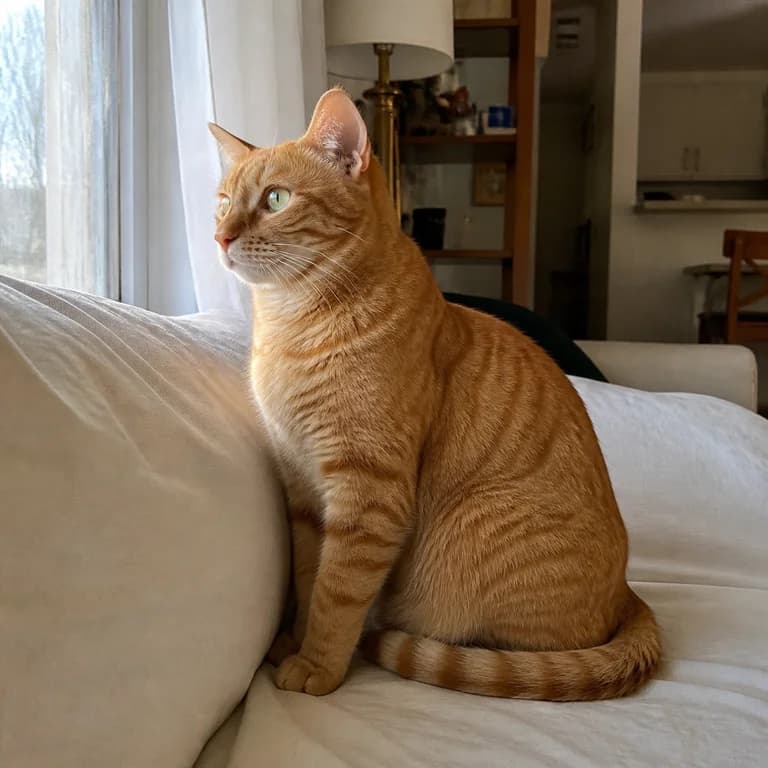
Both clips below begin with the same seated cat. One request keeps the camera fixed and asks for soft breathing and a blink. The other asks for a small pan to the right. Compare the room edges as well as the cat: a camera instruction changes the relationship between the subject and its surroundings.
These image to video prompts do not redescribe the cat's coat or invent another room. They spend their words on movement. That leaves you with a useful question when reviewing the result: did the requested motion happen while the photographed subject remained recognizable?
Let the subject move
A locked camera. The cat remains seated, breathes softly and blinks once. Nothing else moves except a faint shift in daylight. Preserve all shapes. No text, scene cuts or speech.
Recorded request for the fixed-camera example. Adapt the action to an animal and pose actually visible in your image.
Use this promptLet the viewpoint move
The camera pans a little to the right. The cat remains seated and relaxed, with a single slow blink. Preserve the room and the cat proportions. No scene cuts, text or speech.
Recorded request for the pan example. The wording expresses a direction; it does not set a measured camera angle.
Use this promptBefore writing image to video prompts, read the photo
Look at the pose, visible surfaces and empty space. A seated animal supports a small head movement more directly than a leap across the room. A bottle shown from the front gives you information about the front, while its rear remains unknown. A tightly cropped cup has little room for a push before the rim leaves the frame.
Good image to video prompts respect those starting conditions. They can ask the model to continue a visible action or move within the existing view. Asking for hidden structures creates a different task: the model must invent what the photograph does not show.
If the source has motion blur or unreadable packaging, address that before generating. “Preserve every detail” cannot recover details that are absent. Use the source image checklist to decide whether another photo would answer the problem more directly.
Separate subject, environment and camera
Image to video prompts become easier to revise when you can point to the sentence responsible for each kind of motion. Subject motion changes the object or person. Environmental motion changes something around it. Camera motion changes the viewer's position or framing.
You can combine them, but first decide which one carries the shot. In a product close-up, a slow approach may be enough. In a coffee scene, steam can dominate the picture even when the camera also moves. More visible activity is not automatically more useful information.
| Motion type | Possible instruction | Review concern |
|---|---|---|
| Subject | The cat blinks once while remaining seated | Eyes, face shape and posture |
| Environment | A soft reflection drifts across the bottle | Glass appearance, cap and background lighting |
| Camera | The camera moves a short distance toward the cup | Rim, handle, framing and contact with the table |
Starting image
Generated clip
Light can supply the action
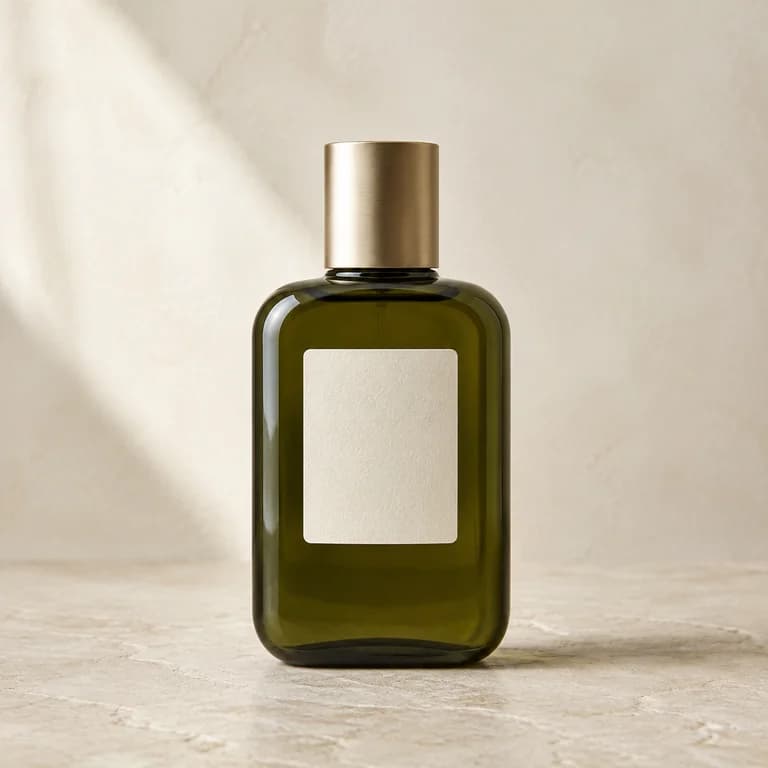
The bottle example asks for a drifting reflection while the product remains still. This is one way to write image to video prompts for a static object without requesting a spin or an opening mechanism. Check whether the generated reflection is consistent with the visible material.
A reflection is generated image content, so it still needs review. If it masks the label, changes the apparent liquid or makes glass look metallic, reduce its prominence. Keep the product's distinguishing features visible throughout the useful part of the shot.
Use a quiet change of light
Keep the camera fixed. A soft reflection drifts slowly across the bottle surface while the product remains still. Keep the cap, label and geometry unchanged. Subtle continuous movement only. No new text or speech.
Recorded Image to Video request. Replace the bottle only if your image has a surface that plausibly reflects light.
Use this promptChoose adjectives you can evaluate
“Thick steam rises continuously” asks for a much more prominent effect than “a faint wisp appears.” The coffee trial shows why intensity words matter. Decide whether the steam serves the image or draws attention away from the cup and pastry.
For image to video prompts, words such as “slight,” “short distance” and “slow” communicate intent without promising measured motion. They are useful descriptions, but the output may still exaggerate them. Inspect the result rather than assuming that a restrained adjective guarantees a restrained clip.
Do not request an effect merely because it is common in advertising. Steam, pouring, stretching fabric and opening a case can imply facts about a product. Use them only when appropriate to the scene and check that the resulting visual claim is acceptable.
Remove instructions that disagree with the photograph
A room photographed in soft daylight already has a lighting direction. Requesting a dark studio, a different table and a rotating product changes both the scene and the motion. If your aim is to preserve the photo's identity, first remove those competing requirements.
Read image to video prompts alongside the input, sentence by sentence. Can you point to the named object? Is its requested destination inside the frame? Does the instruction require a surface you cannot see? Revise the first contradiction you find, then read again.
For example, change “the cup rotates fully to show its rear logo” to “the camera slowly approaches the visible side of the cup.” You have replaced an unsupported rear view with a movement supported by the photograph. The next generation still needs checking, especially around the handle and rim.
Should the camera and subject move together?
They can, when the shot needs both. For an early trial, keep one steady so you can judge the other. Once that trial communicates the intended action, decide whether adding camera movement would improve the edit.
Can these prompts go into Product Agent?
Use Image to Video for custom image to video prompts. Product Agent prepares its own direction from a product photo. Copying a prompt here does not upload an image or start generation; review the draft and supply your own starting image in the tool.
H3 Max offers 5–15 seconds and 480P or 768P. Image outputs follow the starting picture's shape, with possible small differences from integer output dimensions. Keep those choices unchanged when testing a wording edit, so you can understand what you changed.
The general distinction between image information and motion wording is also described in Runway's image prompting guide. Its guidance is useful context; the examples above are H3 Max generations with their own observable limitations.