
Troubleshooting · Your next generation
How to Fix AI Video Distortion
To fix AI video distortion, first identify the exact feature that changed and the moment it changed. H3 Max can generate another clip after you adjust the input or direction. It does not repair an existing video file, and a new attempt may still need revision.
Start with a symptom you can point to
“The result looks wrong” is hard to act on. “The handle changes shape when the camera moves past the side” identifies a feature, a time and a possible source of uncertainty. Keep the original image and the downloaded video open so you can compare them.
Use the index below to choose the first thing to investigate. It describes possible problems, not a diagnosis of every sample on this page. Several issues can appear in one clip, but testing them separately makes the next request easier to assess.
| Symptom | First check | Possible next change |
|---|---|---|
| New or changing text | Whether the source or prompt requires readable writing | Use a clearer label photo or remove a writing-related scene cue |
| Changing geometry | The source outline and the first frame where it changes | Reduce viewpoint change and keep the relevant surface visible |
| Unstable motion | Competing camera, subject and environmental requests | Keep one primary movement |
| Occlusion trouble | The moment a hand or object covers an identifying part | Remove the interaction or choose a source that supports it |
| Invented rear view | Whether that surface appears in the input | Stay near the source angle or provide another view |
A real text failure: writing on blank paper
The desk prompt asked for a notebook scene without added text. The generated clip nevertheless placed “The First Chapter” on the page. This is a specific instruction failure you can see, rather than a hypothetical warning about what models might do.
If you need to fix AI video distortion involving writing, distinguish invented text from an incorrect transcription of real text. This example invents writing in a generated scene. A photographed product label presents a different problem: the video must maintain existing characters as the view changes.
The second request added “completely blank, unmarked pages” to the notebook description. Its five sampled frames show blank paper. Both tasks requested five seconds, 768P and 16:9, but generated different compositions. This pair records an encouraging result without proving that the edit will always prevent writing.
Watch where the camera leaves the known view
The chair trial requests a wide orbit and reaches the back of the item. The source establishes one view, so the later rear surfaces need generated interpretation. That is a known evidence gap, even when the motion looks coherent.
To fix AI video distortion around object shape, first locate the transition from a supported view to an unsupported one. Look at the leg joints, rear of the seat and floor contact. Compare them with additional photographs of the actual product before deciding whether they are correct.
Starting image
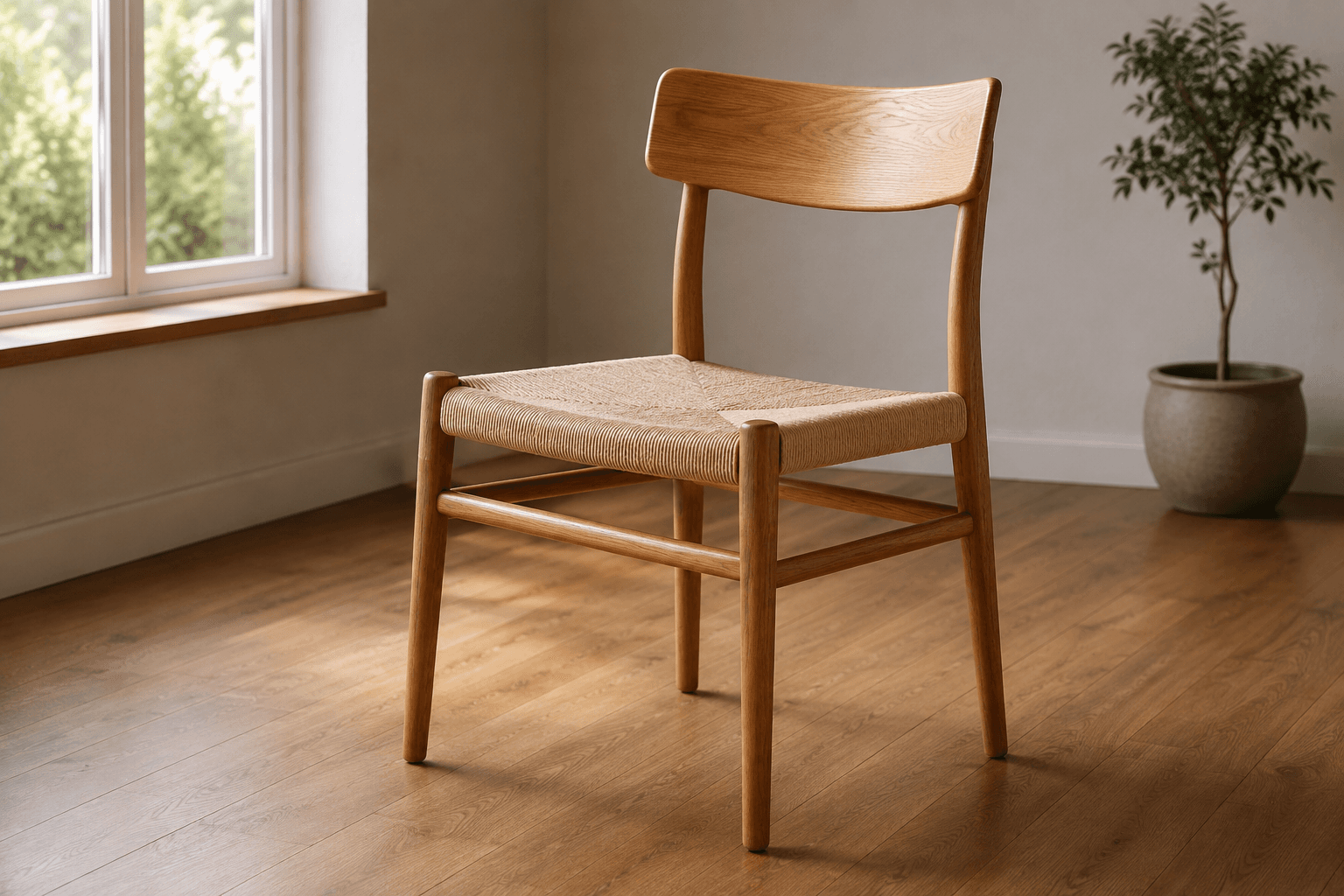
Generated clip
These examples are not labeled as confirmed geometric defects. They show why a larger move requires more checking. A ring's glint can hide a support briefly, and a changed viewing angle can make a sound structure look different. Pause, compare and avoid diagnosing a defect from a thumbnail.
A smaller approach is a useful alternative when the rear view is unnecessary. It changes the task by asking for less unseen content. It may help you fix AI video distortion, but the resulting video remains generated and must be reviewed.
Try a smaller movement from the source view
A slow camera push toward the ceramic mug. Preserve the handle, glaze, rim and background. Keep the mug stationary and use the existing natural light. No added objects, text or speech.
An existing recorded Image-mode request, offered as a restrained starting point. Replace the subject and identifying parts to match your own image.
Use this promptCheck whether your prompt asked for the unwanted effect
The stronger coffee prompt asks for thick steam and a closer camera. Its result includes visible steam. If that effect overwhelms the food, the problem may be the instruction's intensity rather than failure to follow it.
Read the actual submitted wording before trying to fix AI video distortion. Words such as “dramatic,” “wide orbit,” “thick” or “rapid” invite a larger change than “slight” or “short distance.” Decide whether that change belongs in the shot.
Also check what the effect implies. Generated steam is not a measurement of the drink's temperature. An opening lid does not verify its real mechanism. Remove unsupported actions rather than spending repeated attempts making a misleading demonstration look more convincing.
Keep a record as you try to fix AI video distortion
Keep the current source, prompt, duration and resolution in a short note. Describe the failure with a time and a feature. Choose one relevant change for the next request, such as replacing a blurred source or reducing the camera movement.
- Save the rejected output and identify the earliest unacceptable moment.
- Compare the affected feature with the source at a useful size.
- Write one proposed cause as a hypothesis, such as missing rear-view information.
- Change the input or direction that addresses that hypothesis.
- Review the new result for the original problem and for new problems.
This process helps you fix AI video distortion without losing track of what you tried. It does not produce a controlled scientific experiment: each generation can vary, so a difference between two outputs does not prove that a single wording change caused it.
A useful record might say: “Handle altered near the end; broad orbit requested; next attempt keeps the mug still and uses a short push.” If the next handle is acceptable but the rim changes, record both observations. Do not call the whole problem solved because one detail improved.
Know when another source is the better next step
If repeated attempts fail at the same tiny lettering, hidden joint or blurred edge, inspect the input again. The photo preparation guide helps distinguish a usable source from one that cannot support the requested view.
Trying to fix AI video distortion by increasing resolution alone leaves missing source information unresolved. More pixels can expose a defect more clearly without correcting it. Use a sharper photograph or a less demanding movement when those changes address the actual problem.
Stop generating when the shot requires accuracy that you cannot verify or a function that the image does not show. Real footage may be necessary for a precise mechanism, readable instructions or a demonstration of how a product works.
Choose the next attempt to fix AI video distortion
Can H3 Max repair my completed video?
No. This workflow helps you fix AI video distortion by preparing another generation. H3 Max does not accept a completed clip for local repair, stabilization or in-place correction.
Will another attempt spend credits?
A newly submitted generation has its own cost. At five seconds, 480P costs 25 credits and 768P costs 40. Check the displayed estimate before submitting; a suggested prompt edit does not itself start or pay for a task.
Open Image to Video when you need to simplify custom motion, or Product Agent when you want automatically prepared product direction. A Product Agent result still requires the same factual inspection.
For further source-image context, Runway's image prompting guidance notes that input flaws can carry into generated motion. The practical aim here is a better-founded next request, with unresolved problems kept visible.