
Packaging, visible texture, and controlled light
Skincare Product Video Maker
The skincare product video maker creates a short packaging showcase from your bottle or jar photo. Follow the surface, cap, and label through the result before downloading. A generated packaging shot does not demonstrate skincare effects, application results, or a customer's experience.
Create a skincare product clipStarting image
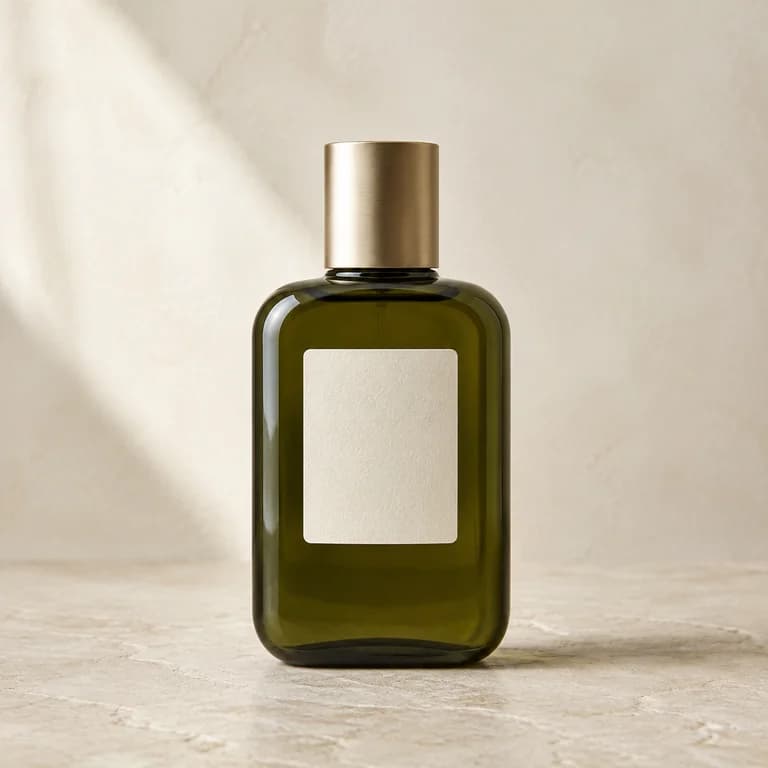
Generated clip
Read the package from its outline inward
Start with the bottle's outer edge. The shoulder should still meet the neck in a plausible way, the cap should remain attached, and the base should stay on the photographed surface. These relationships are easier to lose in a bright reflection than they are in an ordinary product still.
Then look at the surface inside that outline. Is the photograph showing clear glass, a frosted finish, or an opaque container? Treat those as different input conditions. A moving bright band can be appropriate to the lighting while still making a frosted bottle appear transparent.
Keep the original visible during review. The skincare product video maker produces new frames; remembering the general look of the package is not enough to verify a small shoulder curve or a narrow gap beneath the cap.
Choose the photograph by the packaging material
A useful source makes the container's edges and photographed finish readable before motion begins. Avoid an image where the label is sharp but half the outline disappears into a blown highlight. Adjust the source lighting or select another photograph instead of relying on generation to recover missing detail.
| Package | What the source should show | Where to inspect the clip |
|---|---|---|
| Transparent bottle | Both edges and the visible liquid level, without an overexposed stripe hiding the body | Liquid level, glass thickness cues, and the boundary between label and bottle |
| Frosted bottle | The soft surface finish and a clear silhouette against the background | Areas where a moving highlight makes the material suddenly look clear or metallic |
| Jar with a lid | The full lid, its edge, and the point where it meets the jar | Lid diameter, the seam beneath it, and the base contact with the surface |
Set a small visual task for the skincare product video maker
Choose whether the shot should reveal the overall package or bring an existing detail closer. A modest camera approach can give a jar lid more screen space. Asking for an opening lid introduces a new state of the product, including contents and surfaces that may not be shown in the source.
Prepare the crop for the destination before upload. Product Agent inherits the photograph's ratio. A tall bottle needs room above its cap and below the base, especially if you plan to add text in an editor. A wide product photograph cannot be assumed to produce a vertical clip.
Keep the source tied to the actual package version. If your label changed last month, use a current photograph. The skincare product video maker cannot know whether a cap, label, or carton belongs to the version now available in your store.
Create a skincare product clip
The video aspect ratio follows your image.
Advanced options · Optional end frame
Sign up for 40 free credits—enough for a 5-second video at 768P.
Generate the packaging shot
Upload your prepared image in Product Agent / Single. This mode prepares the prompt for you. Choose 5–15 seconds and either 480P or 768P, then review the displayed credit amount. Start with a short candidate so you can inspect the package before generating a longer version.
The skincare product video maker's default product workflow is useful when you want an automatically prepared showcase. If you need to write the camera direction, use Image to Video instead. Describe the motion around the existing package, keeping the request small enough to compare with the source.
A prompt such as a slow approach toward the photographed front gives you a specific movement to review. Directions to pour, pump, open, or apply the product introduce functional actions. Use actual recorded material when those actions need to represent the product accurately.
Give the label its own review
The label can fail while the bottle still looks convincing. After the skincare product video maker completes a clip, pause through the printed area at the size you plan to publish. Look at the product name, the spacing of small text, and whether the label edge moves independently of the bottle.
If the viewer needs to read the ingredient list or volume, keep a sharp still available in the final edit or product gallery. A larger export cannot reliably recover letters that generation changed. Reject a clip that invents a claim, even if the invented text appears for only a moment.
Follow the label boundary
Watch where the paper or printed panel meets the container. It should not widen, wrap farther around the bottle, or detach from the visible surface as the camera moves. Compare it with the source at similar framing.
Read the identifiable marks
Inspect the product name, logo, and any other mark large enough to be read in the source. Do not assume the letters stayed accurate because the typography still looks professional. Check the usable frames rather than only the poster.
Check the color beside a still
Place the generated candidate next to a current product photograph in your editor. A warm light change may make white packaging look yellow or alter the apparent liquid color. Decide whether that difference misrepresents the item.
Use the shot for the claim it can support
A reviewed packaging clip can show the photographed bottle in motion within its scene. It cannot prove that a formula reduces redness, changes skin texture, or delivers a measured result. Add only substantiated copy in your final edit, keeping any evidence for those claims separate from this appearance footage.
Product-image standards distinguish packaging, texture, details, and use-context imagery as different kinds of material. That distinction is useful here: choose the right source for the question you want the image to answer. See the GS1 product image specification for the image-type framework.
The skincare product video maker does not supply a testimonial or a model's actual routine. If your post needs a person applying the product, plan that footage with the necessary rights and accurate demonstration. Do not imply that a synthetic scene records a customer result.
Questions about skincare packaging
Will this show how the formula works?
No. The skincare product video maker creates a short visual from the supplied photo. Packaging appearance, generated texture, and simulated application cannot establish product efficacy or a real before-and-after result.
How should I photograph a transparent bottle with small text?
Make the outline and label readable under controlled light, keeping bright reflections away from essential lettering. If one image cannot show both clearly, prepare a separate detail photograph. Keep a plain label still beside the moving shot when buyers need to read small print.