
Build the Reel around a related set of photos
AI Instagram Reels Generator for Visual Clips
The AI Instagram Reels generator turns a photo into a short moving clip. Choose images with related light and color, animate the view you need, then assemble your Reel in an editor. H3 Max creates footage; cover selection, captions, music, and publishing remain separate steps.
Animate a photo for ReelsChoose the sequence while the pictures are still
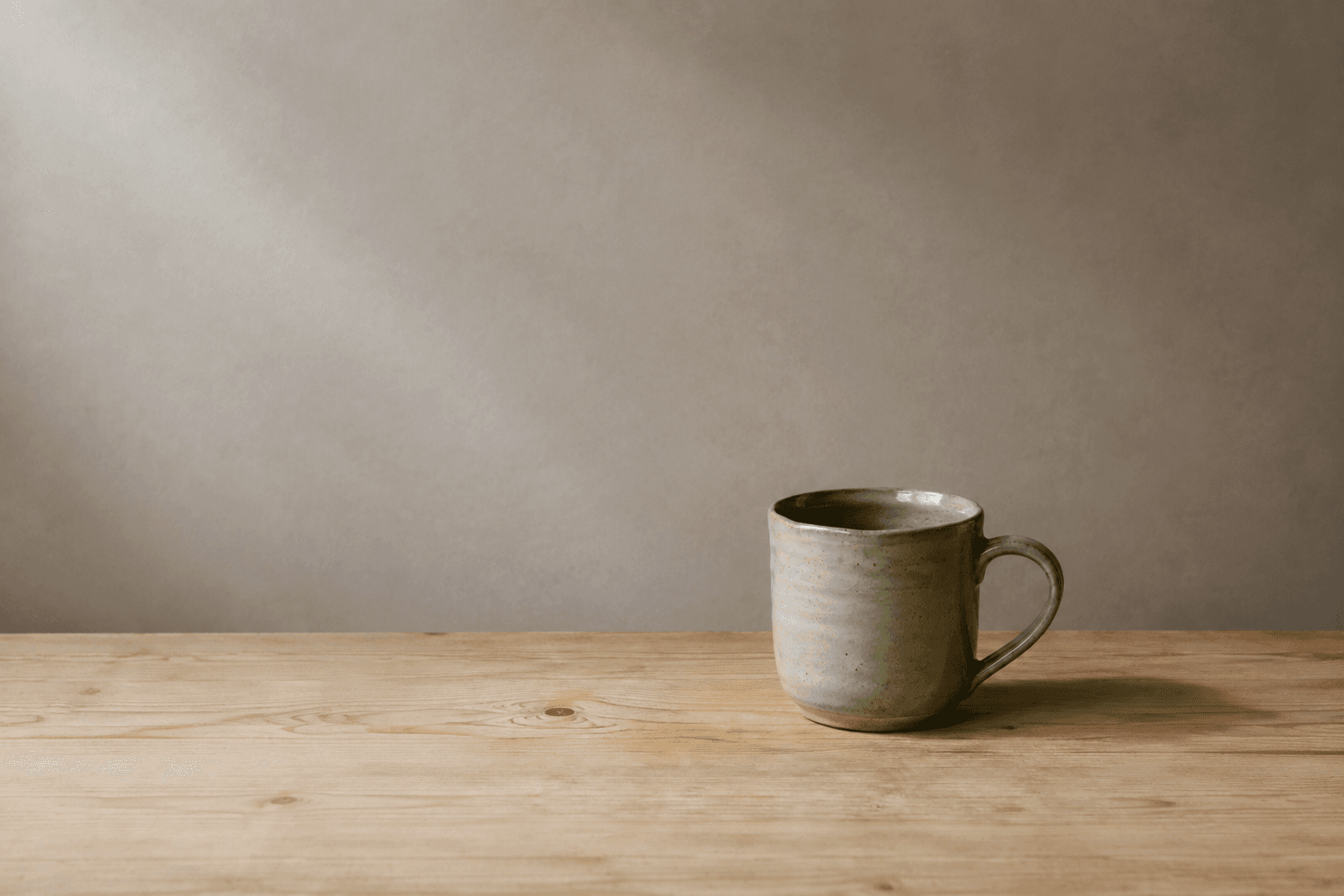
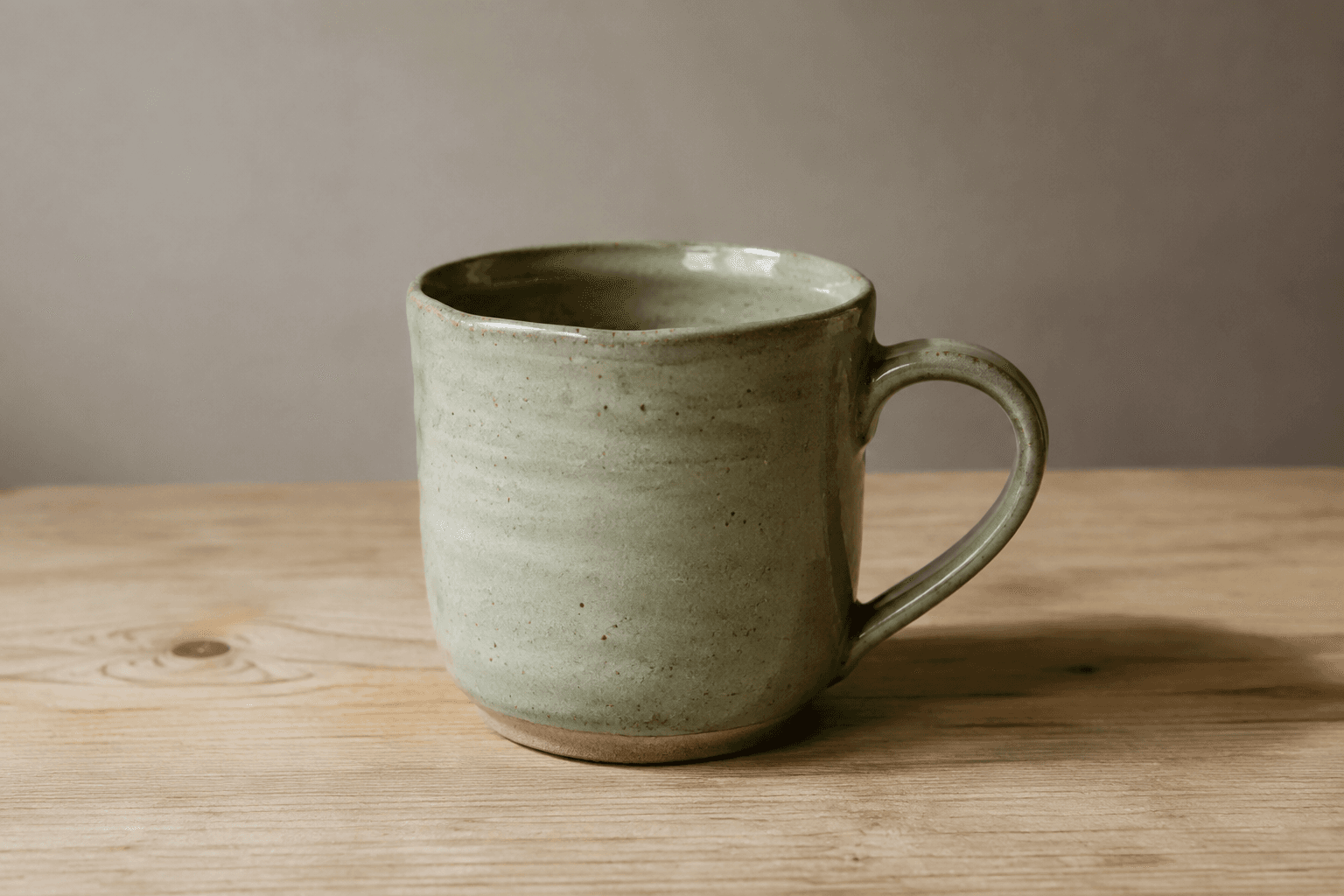
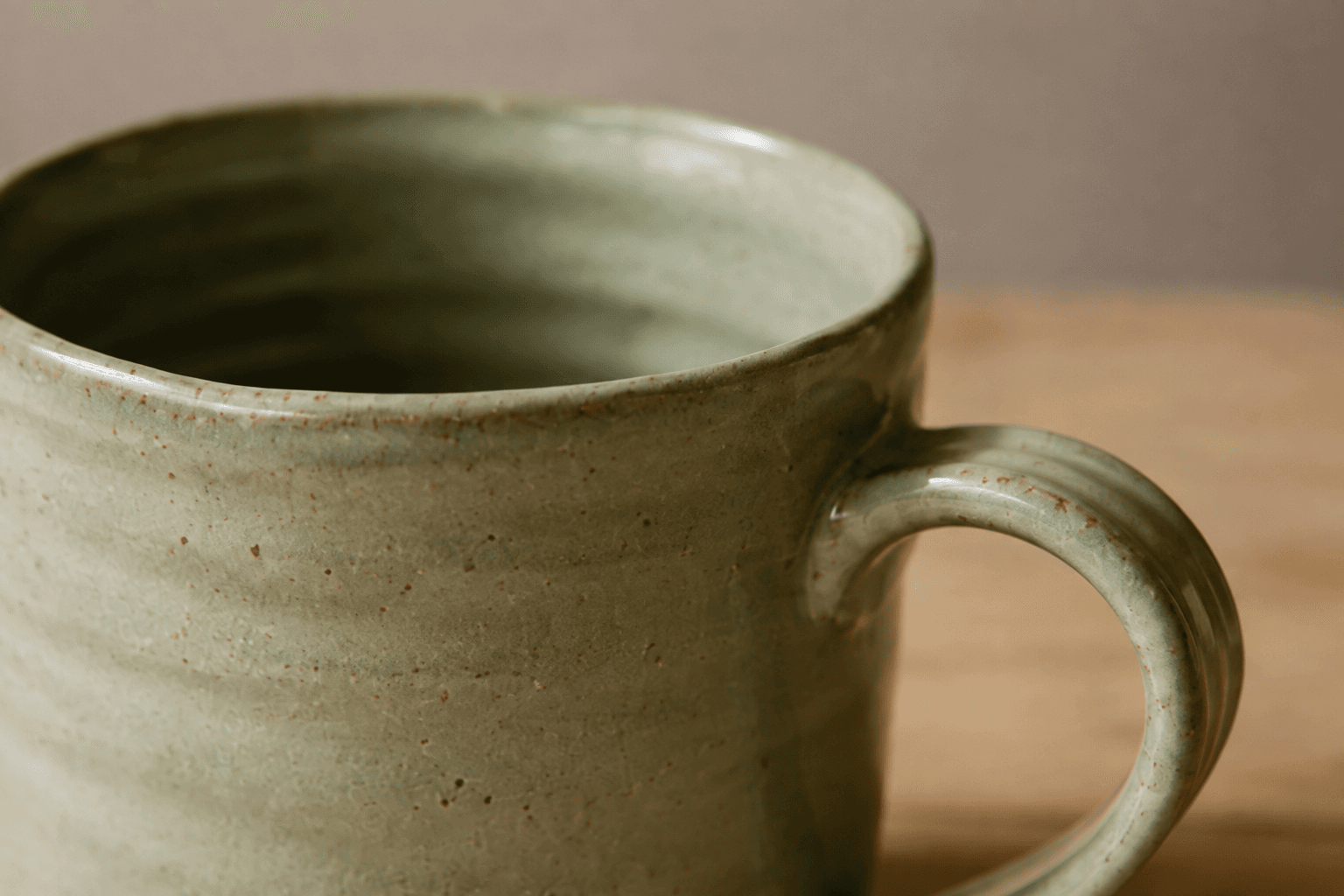
A wide tabletop photograph and a close view of the same mug can belong together before either one moves. Look at the direction of the daylight, the color of the wall, and the height of the camera. If those relationships already disagree, motion adds another variable to resolve in the edit.
Place your candidate images in the order you intend to use them. Begin with the room when context matters, then move closer to the object that carries the post. If the post is about a product detail, a close view can lead and the wider scene can follow. Let the subject determine the order.
Starting image
Generated clip
Starting image
Generated clip
Starting image
Generated clip
These three AI-generated photos were animated separately. They show how context, a complete object and a detail can relate across a cut; they are landscape working clips. Plan a portrait crop before making your own Reels shots. No cross-clip consistency is guaranteed.
Carry one visual relationship through the cut
Each generation works from the image you supply. It does not remember a brand shoot and enforce the same light across later clips. Keep your source selection deliberate: a pale tabletop under window light belongs to a different scene from the same object lit by a small warm lamp.
When two frames disagree, decide whether the change has a purpose. A transition from a cool exterior to a warm room may be part of your story. A bottle turning from white to yellow between two supposedly continuous views is more likely to confuse the product appearance. Keep corrections tied to the photographed item.
Match movement as well as color. Two modest camera approaches may be straightforward to join, while a fast orbit followed by a fixed detail can feel abrupt. You can still use that cut if it supports the edit, but make the choice after watching both candidates rather than assuming similar prompts produce matching motion.
Decide which photograph can also support the cover
Before opening the AI Instagram Reels generator, look for a frame that identifies the subject when it is small. A tiny object surrounded by a room may work during playback but disappear as a cover. Keep a separate original still if that gives you a clearer cover choice.
Prepare the vertical crop before an image-based generation. The output inherits the source ratio, so a wide source does not automatically become a vertical Reel. Check whether the crop cuts off a bottle cap, a sleeve, or the only visible part of a product label. Change the photograph or its framing before uploading.
Leave useful empty space for your planned text, then check the cover in the different previews offered by Instagram. The publishing surface can crop the image differently from the full-screen player. The AI Instagram Reels generator does not generate a dedicated cover or know which profile preview you will use.
Animate a photo for Reels
The video aspect ratio follows your image.
0 / 50,000Sign up for 40 free credits—enough for a 5-second video at 768P.
Use the AI Instagram Reels generator on your selected photo
Upload one image and describe a restrained movement around the existing scene. For a desktop photo, request a small camera approach while the objects remain still. For a photographed fabric detail, a change in framing may be easier to inspect than invented wind moving the garment.
The AI Instagram Reels generator offers 5–15 second clips at 480P or 768P. Check the credit amount before submitting. Start with the duration needed for this particular place in your sequence. A short detail insert and a longer pause for text have different editing jobs.
When your source is a product photo
Choose Product Agent if you want its automatically prepared prompt. Use Single for a single product image. The output still follows the input ratio, and labels or fine edges still need checking before the footage joins the Reel.
When you want to write the movement
Stay in Image to Video. Describe the camera movement or a small scene change without asking for a new product or several settings. The image prompt guide gives examples of keeping motion instructions close to the input.
Watch each result beside the next shot
After the AI Instagram Reels generator finishes, review the result against its source. Then place the candidate beside the next clip or still in your editor. A shot can look acceptable by itself and still change the apparent color of a product when the sequence cuts to the next view.
Check the moments near your intended cut points. If the camera settles only at the end, that part may suit a pause for text. If a surface changes shape before the cut, trim it out or generate another candidate. Keep the source files and record the version you accepted so later edits use the same footage.
Do not force every frame to move. A still photograph can give the viewer time to read an exact label or inspect a texture. Combining a reviewed clip with a sharp still may answer the post's question more clearly than animating every available image.
Assemble the Reel, then inspect the publishing preview
Download the accepted clips and set their order in your editor. Add the text and audio you intend to use, then watch the sequence on a phone. Pay attention to whether the caption covers the detail you chose the photograph to show. Adjust the text or the cut before exporting.
Check the actual output dimensions and your final export. A 768P generation tier is not a claim that the edited file meets every Instagram placement requirement. Cropping, scaling, and re-exporting can change the file you eventually upload.
Meta's Reels advertising guidance emphasizes vertical 9:16 creative, audio, and keeping important content within the safe area. Those are ad-production recommendations. For your organic Reel, use the current app preview and upload instructions; for an advertisement, read Meta's Reels ad guidance for the specific placement. Reviewed September 5, 2026.
Questions about keeping a set together
Will several generations have exactly the same style?
No. Related source images can give you a consistent starting point, but each generated clip still needs review. The AI Instagram Reels generator does not guarantee identical subjects, lighting, or motion across separate jobs. Select, trim, or replace clips based on the assembled sequence.
Can I publish straight from here?
No. Download your selected footage and finish the Reel externally. Check the selected cover, caption timing and final crop in Instagram before publishing, even if the file looked correct in your editor.