
Keep the setting recognizable as the view moves
Jewelry Video Maker
The jewelry video maker turns a jewelry photograph into a short showcase clip. Use a view whose setting and edges you can inspect, keep the movement close to that view, then compare the result with the source. Single-photo generation does not provide an accurate 360-degree reconstruction or virtual try-on.
Animate a jewelry photoCount the visible structure before the sparkle
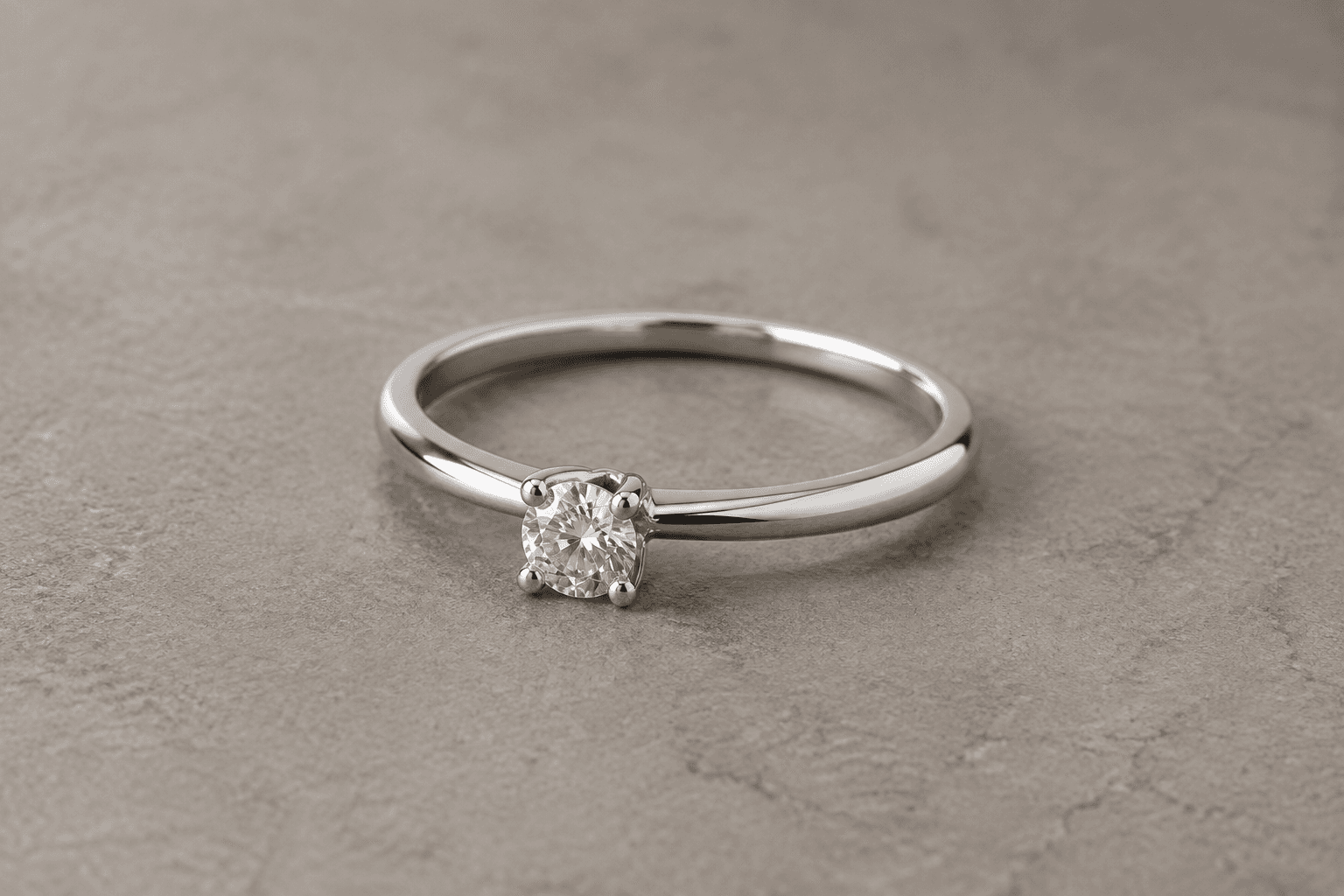
For a ring, begin with the parts holding the stone. Note the visible prongs and where they meet the setting. Then follow the band and the outline of the stone. If the photograph cannot show a small junction clearly, the moving clip will be difficult to verify at that junction.
For a pendant, look at the attachment to the chain. The bail should connect to the pendant in the same place, and visible chain links should remain connected. A bright reflection can make a broken link look like a moment of shine when the video is viewed quickly.
The jewelry video maker is useful only if the accepted shot still represents the item. Review the source at a readable size and keep it open while watching. A smooth camera move does not compensate for a changed setting.
Starting image
Generated clip
Give the jewelry video maker a view you can defend
Use a photograph of the actual piece, with the intended face in focus and the whole relevant outline inside the crop. Keep the background quiet enough to distinguish a narrow band or chain. Avoid heavy retouching that erases the setting you later need to compare.
- Ring viewed from the front
- Good for the photographed stone and visible prongs. Keep the camera near that face. The input does not establish the underside of the setting or the complete inner band.
- Pendant lying flat
- Useful for the pendant outline and chain attachment. Check the chain where it crosses itself; those intersections need more attention than an empty part of the background.
- A pair of earrings
- Keep both pieces and their attachments visible. Review each separately so a change in one earring is not hidden by the apparently stable shape of the other.
- An engraved surface
- Use a separate sharp still when the engraving must be read. Generation may change letters or shallow markings even if the surrounding metal remains plausible.
Move toward a detail before moving around it
A small approach toward the visible setting keeps the jewelry video maker close to information already in the photograph. A wide orbit asks for surfaces that may never have been pictured. Decide whether you have enough reference material to judge those new views before requesting them.
This is a review choice, not a promise that a smaller move will always preserve every detail. A narrow band can still change shape during a gentle shot. Watch the output and reject it when the source no longer supports what appears on screen.
If you want to compare camera approaches, keep the same source and change one movement request in Image to Video. Review the setting in each result before judging which move looks more appealing. Do not label a rotating clip as a precise product scan.
Starting image
Generated clip
Starting image
Generated clip
Animate a jewelry photo
The video aspect ratio follows your image.
Advanced options · Optional end frame
Sign up for 40 free credits—enough for a 5-second video at 768P.
Generate a short candidate for close inspection
In the jewelry video maker, Product Agent / Single prepares the prompt from the product-photo workflow. Upload the prepared image, choose 5–15 seconds, and select 480P or 768P. Check the credit amount before submission. A short first candidate limits the footage you need to examine.
The output ratio follows the input. A ring with a wide surrounding surface remains in that composition unless you crop the source first. Leave enough margin to keep the band inside the frame, especially when the destination will display the clip small.
Choose Image to Video when you want a written camera instruction. Product Agent has no hand-written prompt field. Keep the object still and ask for one camera change that you can evaluate, using the camera movement guide when selecting that change.
Separate a moving reflection from a moving object
Watch the clip once at normal speed, then pause where a bright highlight crosses the metal. The highlight can move while the ring stays still. Look underneath it: does the band width change, does a prong disappear, or does the edge of the stone become a different shape?
Next, inspect the darkest areas. A setting can merge with its shadow, especially where the stone meets the metal. If the junction becomes unreadable, keep a static close-up available for the buyer rather than treating the jewelry video maker's motion as a clearer explanation.
For a chain, follow a short visible stretch instead of trying to inspect every link at once. Check its connection to the pendant, then check any crossing or fold. Stop the review if the chain gains a new branch or detaches. An attractive reflection does not make that frame usable.
Record a rejected detail precisely. A note such as left prong disappears near the end tells you what to inspect in another candidate. Calling the result unrealistic gives less direction. The distortion guide covers preparing a revised generation when the jewelry video maker changes the structure.
Keep size and material claims beside their evidence
A close-up can make a small pendant fill the screen. Give its measured dimensions separately and use an accurate scale photograph if the listing needs one. Generated camera distance cannot show how the piece will fit a buyer.
Use the actual material and stone descriptions from your product information. Added light can change the apparent color or brightness, so review the clip beside the listing photographs. The jewelry video maker does not measure color, assess clarity, or establish value.
For Etsy, follow the silent listing workflow and check the final file against current platform requirements. Keep the accepted clip and its source together so a later listing edit uses the right item.