
Choose the job before the settings
AI Video Use Cases
These AI video use cases start with the material you have and the place your shot needs to go. Choose a route for a store, a social edit or a particular kind of product.
What are you starting with?
A product photo is enough to try a short showcase. Product Agent prepares the motion direction for you. If you need to specify the movement yourself, use Image to Video with the same photo and a short prompt.
No photo yet? Text to Video builds a scene from a description. Use it for an imagined setting or supporting shot where matching a particular item is not the job.
Where will the shot appear?
Publishing changes the brief. A listing clip needs to agree with the item for sale; social footage needs to work inside a larger edit. These AI video use cases explain the handoff as well as the generation step.
Shopify Product Videos ↗
Plan a place in the media gallery, inspect the exported file, then upload it in Shopify admin. Start here when the video needs to sit beside your existing product photos.
- Input
- An existing product photo
- Output
- A short product-page clip
Amazon Product Videos ↗
Separate an appearance shot from a demonstration that needs real footage. Check the current video entry in your seller account before preparing a submission.
- Input
- A clear view of one listed item
- Output
- A candidate listing shot
Etsy Listing Videos ↗
Use the shape, glaze or texture already visible in the photo. Review the silent clip and actual dimensions before adding it to an Etsy listing.
- Input
- A photo of the actual handmade item
- Output
- A quiet material close-up
TikTok Video Clips ↗
Give the first frame a clear subject and reserve room for the text you will add in an editor. The page separates an organic post from an advertising deliverable.
- Input
- One visual idea or a portrait photo
- Output
- A short opening shot
Instagram Reels Clips ↗
Choose framing that survives the Reels interface, then build a sequence outside the generator. Start here when the cover and adjacent shots need to feel related.
- Input
- Photos with a shared visual direction
- Output
- Footage for a vertical edit
YouTube Shorts B-Roll ↗
Translate the spoken idea into a visible action. Download the result and place it under the relevant line in your Shorts timeline.
- Input
- A sentence from your narration
- Output
- One supporting B-roll shot
Choose the detail you cannot afford to change
The same camera move creates different problems on a ring, a striped shirt and a chair. Browse these AI video use cases by the feature you need to preserve, then use the page's inspection notes while watching your result.

Skincare Videos ↗
Packaging, glass and labels
Keep the package recognisable while separating an attractive bottle shot from any claim about what the formula does.
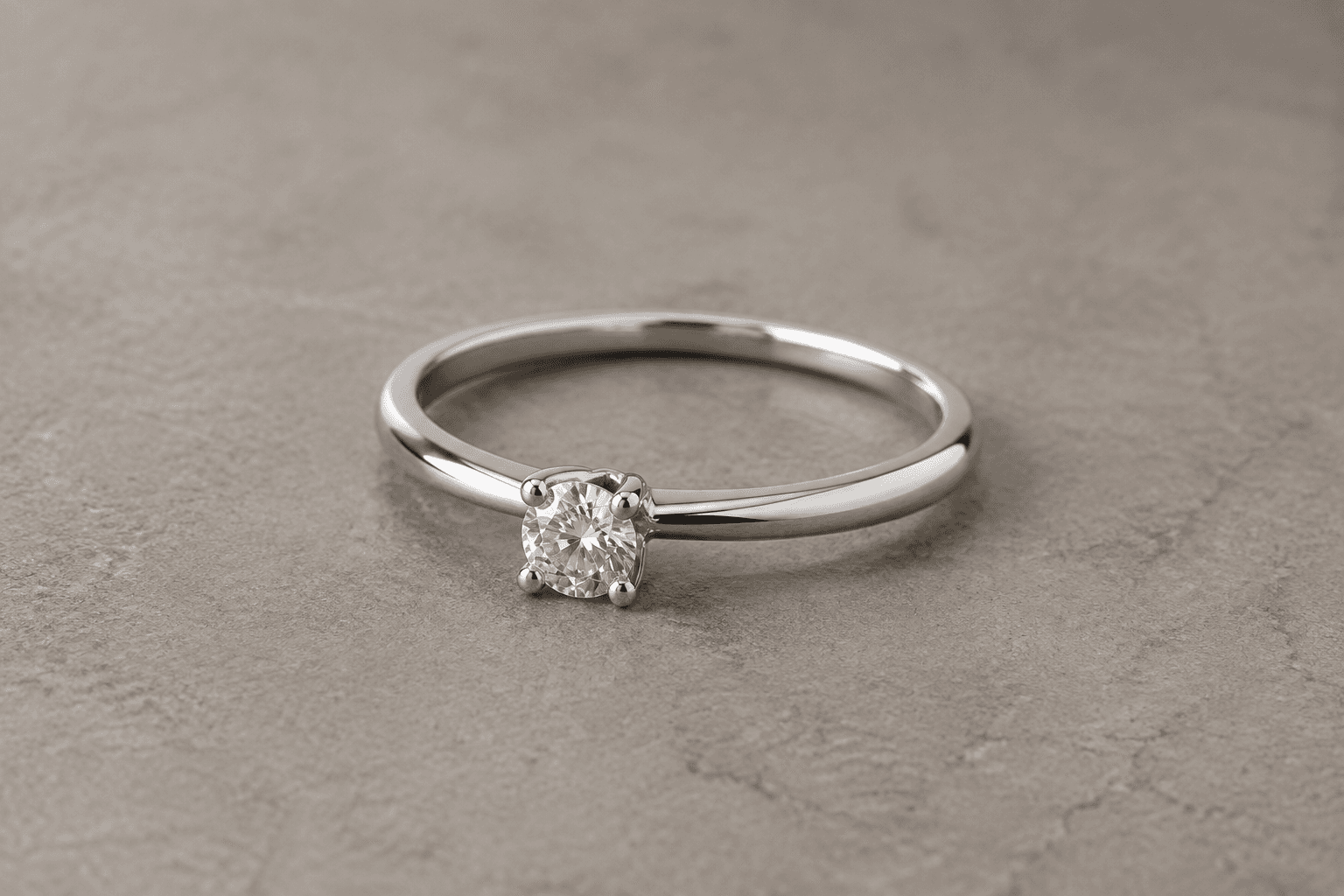
Jewelry Videos ↗
Prongs, stones and reflections
A small highlight can be useful; a new stone is a rejected result. Use the detail checklist before choosing your take.
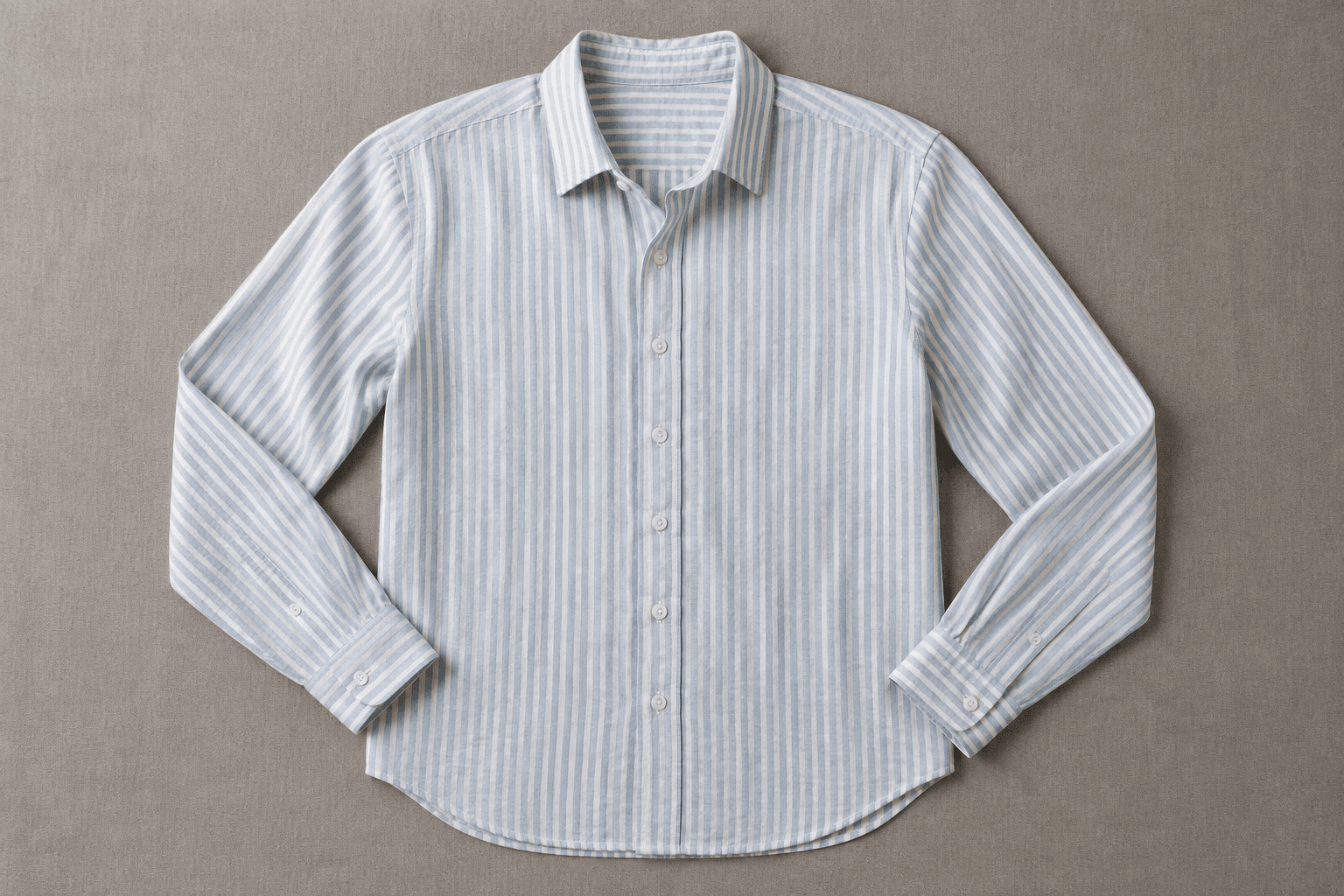
Clothing Videos ↗
Seams, stripes and fabric
Work with the photographed garment. Inspect repeating patterns and hems rather than asking a flat-lay photo to prove fit.

Food & Drink Videos ↗
Surface texture and serving context
Choose a restrained food shot, then check whether steam or movement has changed how the serving looks.

Furniture Videos ↗
Legs, joints and room scale
Keep camera movement modest around an object whose hidden sides are unknown. Review the structure through the entire clip.
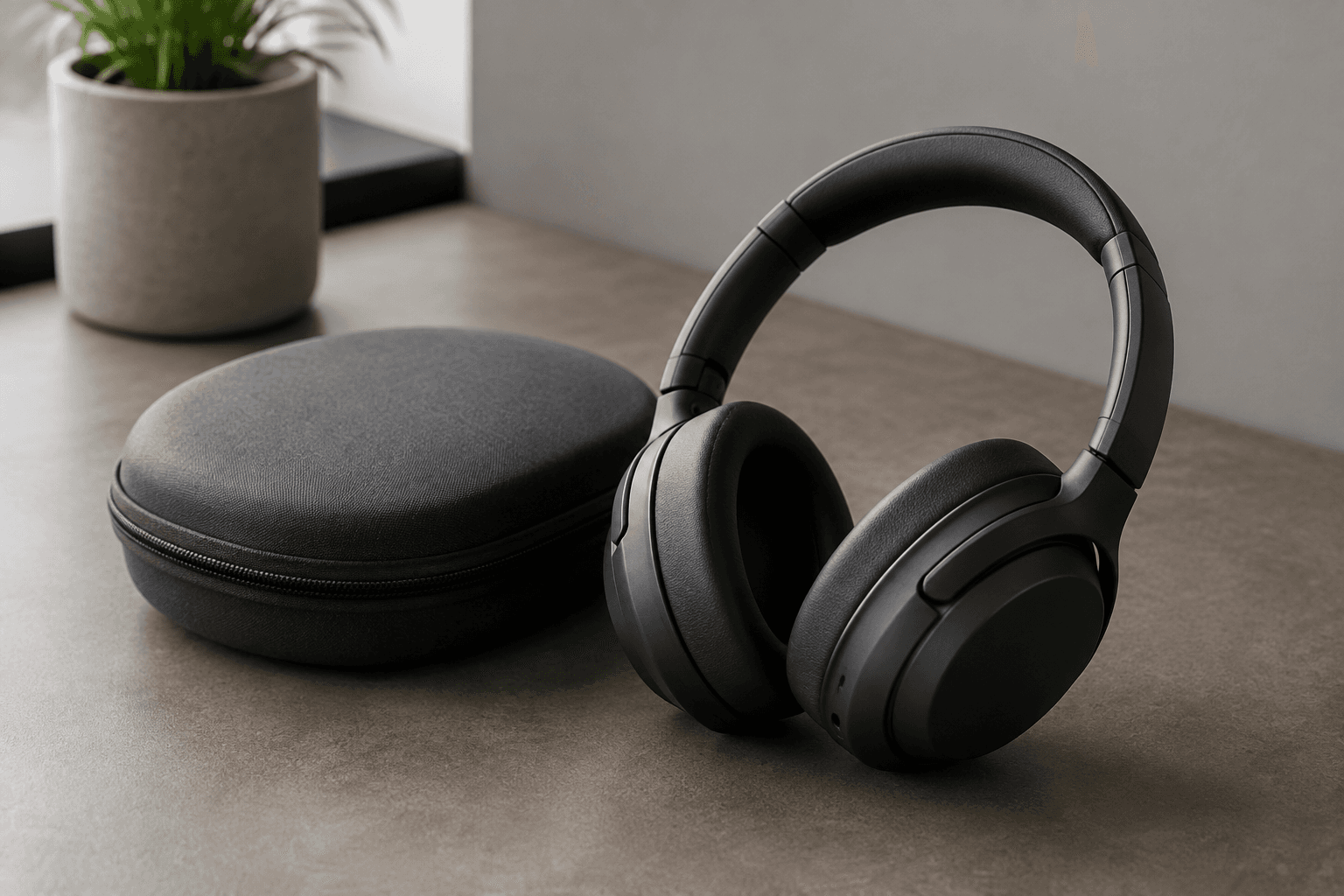
Electronics Videos ↗
Edges, hinges and controls
Show the visible industrial design. Use filmed evidence for setup, button behaviour or anything the device actually does.
What leaves the generator?
A 5–15 second clip at 480P or 768P. Download it, check the picture and sound, and decide what belongs in your edit. Captions, a voiceover, an offer and the final platform upload are separate steps.
Image-based clips follow the shape of the input photo. A horizontal product image will not become a portrait social clip just because the destination is TikTok. Prepare the framing first, or read the aspect ratio guide before generating.
Can one clip serve several channels?
Sometimes. Keep the original export, then make a separate edit for each placement. A crop that works in a store gallery may cut off the item inside a vertical feed. Check the entire frame with the destination's controls and captions visible.
Start with one of the AI video use cases above, produce one test shot and inspect it before generating a folder of alternatives. If you are still deciding how to describe the movement, the guide directory is organised by that next problem.