
Make the footage for one ad idea
AI Video Ad Generator for Short Product Clips
Use the AI video ad generator to create a short product clip with a clear visual job. Start with the opening shot, generate 5–15 seconds of footage, then add your offer, captions, and call to action in your own editor.
Choose what the viewer should notice first
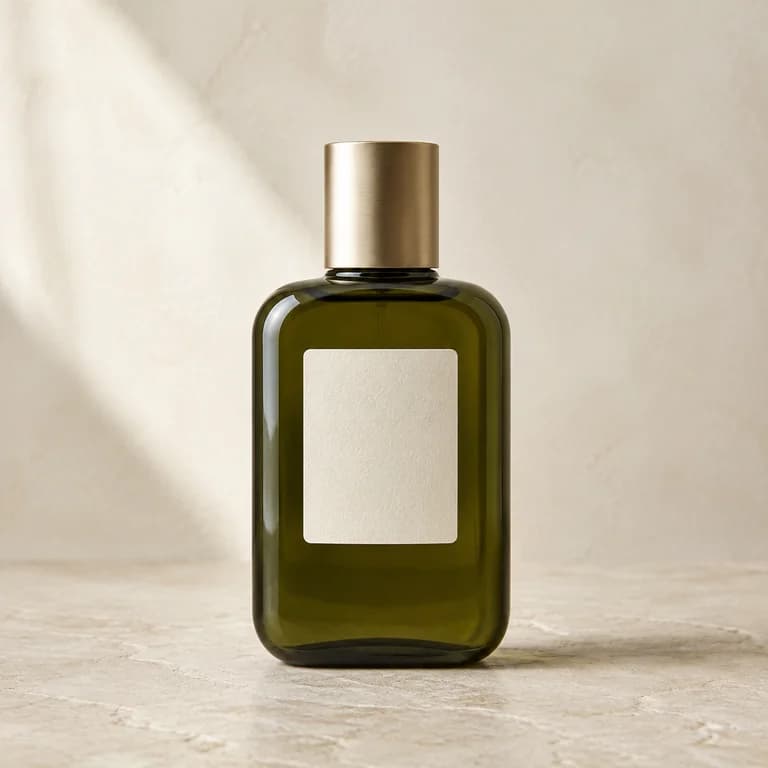
Consider a skincare bottle. An opening close-up could draw attention to its surface. A wider view could establish the surrounding space. A moving reflection could draw out its shape. Each opening gives the viewer different information, even though the product is the same.
Choose one of those jobs before generating. A visual hook is the reason this particular shot belongs at the start of your edit. “Make a good ad” leaves that reason undecided. The storyboard below separates three possible openings so you can prepare footage for a specific creative idea.
Starting image
Generated clip
Detail first
Move slowly closer to the bottle. Keep the product still and watch the label as the framing tightens.
Editing role: bring attention to a visible detail before cutting to the whole product.
Setting first
Pull back a short distance to leave more space around the same bottle and its existing background.
Editing role: introduce the product in a wider composition and assess room for text added later.
Light first
Hold the camera still while a restrained reflection moves across the bottle surface.
Editing role: draw attention to the contour while keeping the product in a readable position.
Generate an ad clip
The video aspect ratio follows your image.
Advanced options · Optional end frame
Sign up for 40 free credits—enough for a 5-second video at 768P.
Compare three openings in the AI video ad generator
These clips use the same starting bottle photo with different image-to-video motion instructions. Compare what reaches your eye first in each version, then inspect whether the bottle remains usable. The AI video ad generator can supply alternative footage; choosing a hook still depends on the message in your finished edit.
Give one clip one visual task
The AI video ad generator opens Product Agent for an automatically prepared product showcase. Upload your product photo, select the duration and resolution, and generate. This is a useful first route when you need product footage without writing the motion prompt yourself.
For a particular storyboard instruction, switch to Image to Video. You provide the first image and write the motion prompt there. Product Agent does not accept a custom prompt, so use the mode that matches the amount of direction you want to give.
Keep the requested action compatible with the photograph. A close crop of the surface supports a detail shot, but may leave the cap outside the frame. A wider photo supports a reveal while leaving the texture less prominent. Prepare the source around the shot's job instead of asking a single input to provide every view of the product.
Custom direction: move closer to the bottle
A slow camera push toward the bottle. Preserve its silhouette, cap, label and background. The product remains stationary. Keep reflections restrained. One continuous shot with no new text, claims or speech.
Use this in Image to Video with your product photo. Inspect the label and outline as the camera moves.
Use this promptPlan the duration around usable footage
Choose 5–15 seconds in the AI video ad generator. A five-second attempt can be enough to evaluate a simple opening move. Ask for more time when the action needs a slower progression, then trim the usable section in your editor. Generating fifteen seconds does not require you to use all fifteen in the finished ad.
Think about the first and last moments as editing points. If the product is hidden at the start, the reveal must earn the time it takes. If the camera is still moving rapidly at the end, the next shot may feel abrupt. A calmer finish gives you a different cutting option from a fast movement that continues beyond the clip.
The available resolutions are 480P and 768P. At 768P, a five-second clip costs 40 credits; three separate five-second attempts total 120. Treat that as a planning calculation for footage generation. It does not predict how many attempts you will approve or how an ad will perform after publication.
With an image input, the video follows the photo's aspect ratio. Prepare a source composition with space for the product and any text you expect to add later. Check the final placement in the editing and publishing tools you actually use, where overlays and cropping can change what remains visible.
Separate appearance from claims
Use the AI video ad generator to depict visible product appearance. A close-up can draw attention to texture, a color, or an outline. It does not verify the material specification or demonstrate how the item performs in use. Make those distinctions before a generated visual becomes part of a sales message.
For the bottle, a moving reflection is a visual cue for its surface. It is not proof of a skincare effect or a change to someone's skin. A generated hand holding the bottle is also not a customer experience. Use evidence you actually have for performance claims and testimonials, and avoid presenting imagined scenes as recorded tests.
Inspect the product across the whole clip. A changing cap, distorted printed mark, or disappearing seam can make an otherwise attractive shot unsuitable. The AI video ad generator does not guarantee exact logos or text, so review identifying details before adding a brand name beside the footage.
Hand the approved clip to your editor
Download the result and assemble the finished advertisement in your own workflow. The AI video ad generator creates footage; this page does not automatically insert a discount, build a caption track, or publish to an advertising account. Plan time for those remaining decisions when you brief the shot.
- Trim to the part where the product and motion hold up, leaving the opening information easy to understand.
- Add the approved headline, factual offer, and call to action as editable text in your editor.
- Choose audio you have permission to use, then check the edit both with and without sound.
- Preview the finished frame in the intended placement and inspect product details again after export.
Keep the source image, generated clip, and final edit associated with the same product in your own files. If the price or offer changes, you can update the editable text without pretending the original footage contains current information. For an ordinary product showcase, return to the product workflow. This page's extra planning is for footage that must serve an ad.
Will it generate the offer text and captions automatically?
The AI video ad generator supplies the clip. Add those elements in your editor after downloading it. Keeping them editable also lets you correct wording and placement without relying on text drawn inside generated video frames.
Can I publish directly to an ad account?
This workflow provides a generated clip to download. Finish the ad and upload it through the publishing tools you use. There is no direct ad-account publishing action in this workspace.