
Keep a visible starting point
AI Image to Video Generator
Upload a photo, describe what moves, and generate a short clip. The AI image to video generator uses your picture as the first-frame reference, with a duration of 5–15 seconds and a choice of 480P or 768P.
Starting image
Generated clip
The picture establishes the scene
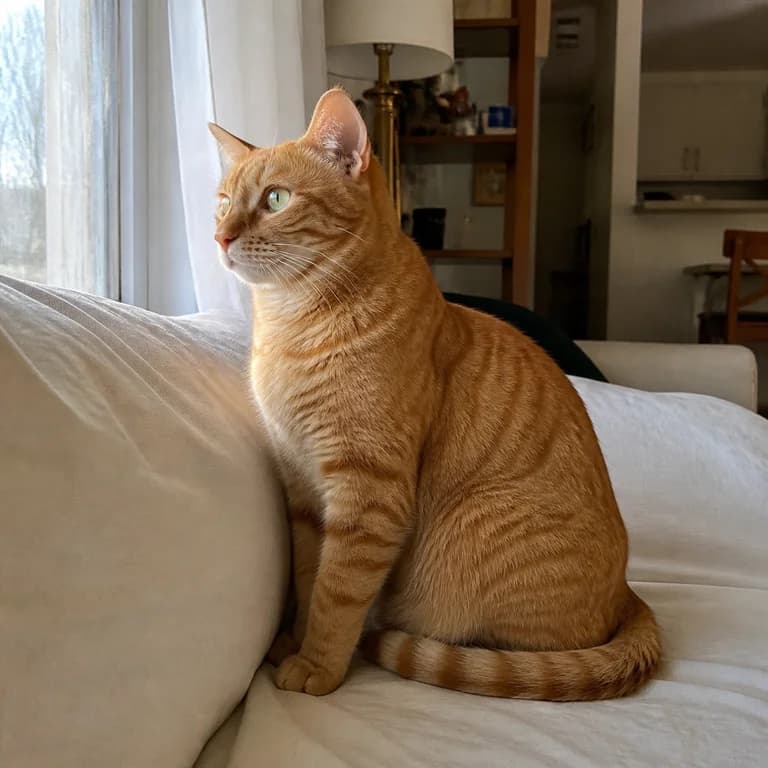
Start with a photo you can inspect clearly. A cat beside a window already supplies the cat, the room, and the direction of light. Your motion prompt can spend its words on a slow blink or a small turn of the head. Rebuilding the room in prose adds little when the image already shows it.
Compare a generated result with the original throughout playback. Look at the outline of the ears, the paws, and the edge of the windowsill. Those recognizable details help you notice when motion starts to change the subject instead of simply moving it.
Animate your image
The video aspect ratio follows your image.
0 / 50,000Sign up for 40 free credits—enough for a 5-second video at 768P.
Decide where the motion should come from
The AI image to video generator needs a prompt as well as an image. Begin with the most important movement, then decide whether anything else must move to support it. A subtle subject action often needs less camera movement because the viewer already has something to follow inside the frame.
Let the subject make one small change
For a seated cat, try a slow blink while its body stays settled. That gives you a simple comparison: the expression changes, but the pose remains close to the photograph. A jump off the sill asks the model to invent a larger movement and body positions that the original image does not show.
A small movement in a familiar pose
The cat slowly turns its head toward the window and blinks once. Keep the camera still, the room unchanged and the cat anatomy natural. One continuous quiet shot. No speech, captions or added objects.
5 seconds, 768P. Use a seated-cat photo whose visible pose matches this action.
Use this promptUse the environment when the subject should stay still
A curtain can drift slightly beside a still subject. Steam can rise from a cup. These movements give a static composition time without requiring the central object to change pose. Choose an environmental element that is already visible or clearly supported by the scene, rather than introducing several new props.
If the photo contains no curtain, asking for one to sweep across the frame changes the composition. Either prepare that background before upload or choose movement the existing picture can support. The reference gives a starting point; it does not make conflicting instructions disappear.
Move the camera when the view itself is the subject
Starting image
Generated clip
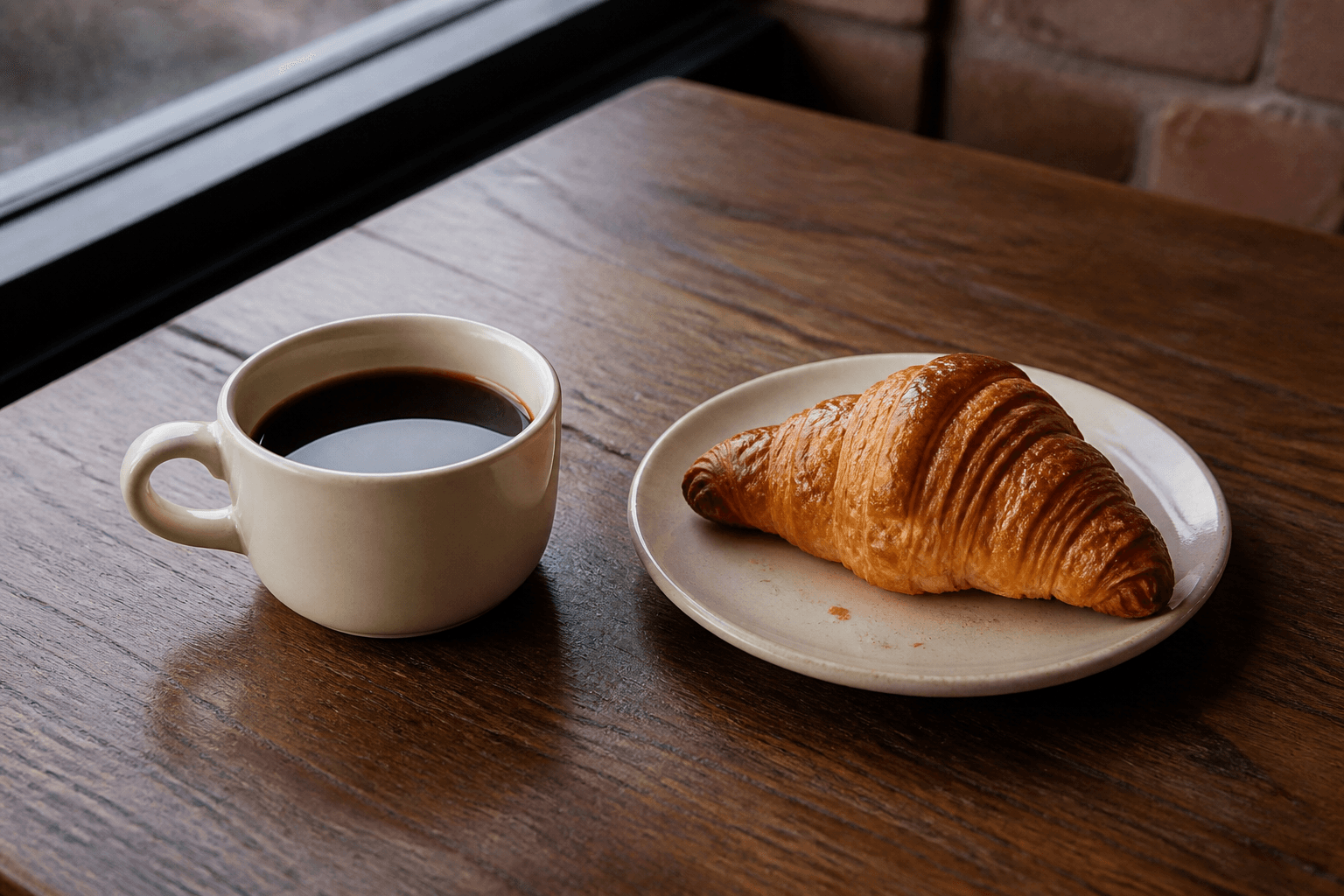
A restrained push toward a still life can draw attention to its texture. Keep the travel small when the photograph only provides one angle. A wide orbit requires views behind and beside objects that were never photographed, so the AI image to video generator has more unseen information to invent.
A closer look at a still life
A very slow camera push toward the coffee cup and pastry. Keep the cup, handle, plate and pastry shape unchanged. Preserve the natural window light and table contact. No pouring, hands, text or speech.
5 seconds, 768P. Inspect the cup handle, plate edge, and pastry as the viewpoint changes.
Use this promptPrepare the file and its final shape
Keep the original alongside the crop you upload. If the generated scene feels cramped, you can compare the crop with the wider source and see exactly what was removed. This is especially useful for a pet near the edge of a photo or a still life with long shadows. Reframing the input changes the starting information, while changing the prompt changes the requested movement. Test those decisions separately when you are unsure which caused the problem.
Upload a JPEG, PNG, or WebP image of up to 20 MB. Choose the clearest source you have, then inspect it at a size where the details you want to preserve are visible. An unclear edge in the input gives you a weak reference for judging that edge in the result.
The output follows the first image's aspect ratio. Crop the photo before upload if you need a tall or square composition. Leave enough space around the subject for the intended motion; an object already touching the frame edge has little room for a move that brings it closer. This page does not offer an independent aspect-ratio override for image input.
Choose a duration from 5 to 15 seconds and select 480P or 768P. Five seconds at 768P costs 40 credits, while five seconds at 480P costs 25. Read the amount beside the generation action after changing settings. A longer clip changes the available time and cost, but does not ensure that difficult motion becomes accurate.
When you submit to the AI image to video generator, keep the motion instruction close at hand for review. Watch for the particular action you requested, then check the parts of the picture that should have stayed still. Approving only the movement can miss a changing background or an altered object.
Resolve a conflict before adding more instructions
If a result misses the intended motion, compare the photo and prompt together. An instruction can be clear on its own and still conflict with the image. Change the smallest part that explains the mismatch, then make another attempt only when you know what you want to test.
| What you notice | What to reconsider |
|---|---|
| The background attracts more attention than the subject. | Reduce background motion in the prompt, or start from a simpler composition. |
| A label changes as the camera turns. | Use a smaller viewpoint change and review the label frame by frame. Exact text is not guaranteed. |
| The subject changes shape during a large movement. | Choose an action closer to the starting pose, or use a different photo. |
| The camera and subject both move too much. | Hold one still so the next attempt tests a single source of motion. |
These are troubleshooting choices, not tested success rates. The AI image to video generator can still produce unwanted changes after simplification. Save the version closest to your intention and judge each new result against it, especially when identity or fine detail matters to the finished piece.
Choose a different starting point when the job changes
Stay with the AI image to video generator when you want to write the motion yourself. For a product photo that only needs an automatically prepared showcase prompt, open Product Agent. Its single-image workflow also supports an optional end frame; the image-to-video mode on this page does not.
If you are inventing the scene and have no photograph to preserve, start in the text workspace. That gives you explicit aspect-ratio choices and lets the description establish the initial composition. Pick the input route according to what you already know about the shot.
Can the output have a different aspect ratio from my photo?
The AI image to video generator follows the first-frame image. Prepare the required crop before uploading, then check that important details remain inside it. Writing a different ratio in the prompt does not replace that input rule.
Should I describe the whole picture again?
Usually, focus on what changes and what should stay still. Name the subject when that helps identify the action, but avoid a second, contradictory description of its appearance. The photo already provides visual information that your motion prompt can build upon.