
One product photo. No prompt to write.
AI Product Video Generator
Make a short product showcase from a photo. The AI product video generator opens Product Agent, which prepares the generation prompt for you. Upload your image, choose duration and resolution, and review the resulting clip.
Starting image
Generated clip
Keep the first job small: show the product
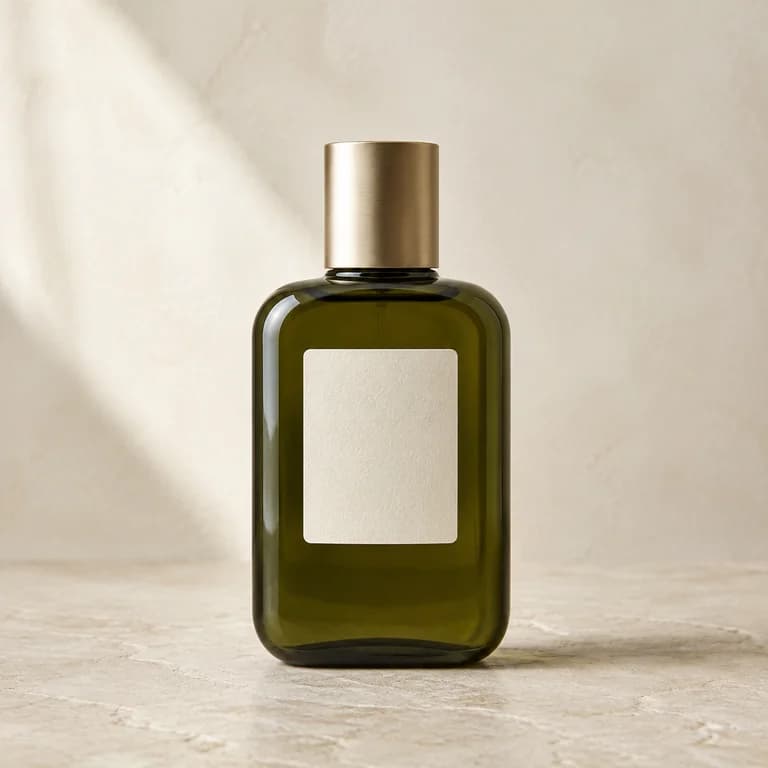
A skincare bottle already has a shape, a surface, and a place in the photograph. Start by asking the workflow to turn that visible product into a short showcase. A five-second clip gives you a manageable result to inspect before making a longer version or preparing footage for an advertisement.
Compare the result with the uploaded photo. Check the shoulder of the bottle, the cap, and the printed area as the shot plays. Motion can make a still image feel different, but the useful question for a seller is whether the visible product still represents the item being offered. Generation does not remove that review step.
Create a product video
The video aspect ratio follows your image.
Advanced options · Optional end frame
Sign up for 40 free credits—enough for a 5-second video at 768P.
What the AI product video generator prepares for you
In this AI product video generator, Product Agent prepares its own prompt from the product-image workflow. There is no commercial prompt for you to write in this mode. You provide the picture and choose the available output settings, then submit the generation. Automatic prompt preparation does not establish product facts or verify what a product can do.
Use Single for one product image. Upload a JPEG, PNG, or WebP file within the 20 MB limit. The output aspect ratio follows the first image, so prepare the intended crop before uploading. A tall bottle may need more space above and below than a low ceramic bowl; the source composition is part of the decision.
Choose 5–15 seconds and either 480P or 768P. At 768P, five seconds uses 40 credits and ten seconds uses 80. The 480P rate is five credits per second. Check the amount shown before submission, especially if you change duration after preparing the image. A short first attempt lets you judge the product before committing to more footage.
After the job finishes, watch the result in full and download the version you want to use. History provides a place to return to submitted work. Keep your original product photo available during review so the moving image can be checked against the source rather than your memory of it.
Inspect the photo where the product is most vulnerable
The AI product video generator starts from the image you supply. Before generation, look at the parts a customer uses to identify the item. A clean photograph does not guarantee a faithful result, but it gives the workflow a clearer starting point and gives you a stronger reference for accepting or rejecting the clip.
Outline and separation
Keep the whole product visible when its overall shape matters. A cap cut off by the image edge or a handle disappearing into a dark background leaves an important feature unclear. Use enough separation between product and background to see the outline without relying on a harsh glow or decorative border.
Material and light
Glass, polished metal, and glazed ceramic reflect their surroundings. Check what the original light already shows: a bright stripe on a bottle, a soft highlight along a mug, or a reflection across a lid. Watch those same areas during playback. A shifting highlight can look plausible while the surface beneath it changes shape.
Letters and small details
Labels, embossed marks, seams, and tiny controls deserve a closer look than the background. The AI product video generator does not guarantee exact text or logo preservation. If the printed claim is necessary for the shot, check every usable frame and keep the original image as a fallback in the final edit.
Starting image
Generated clip
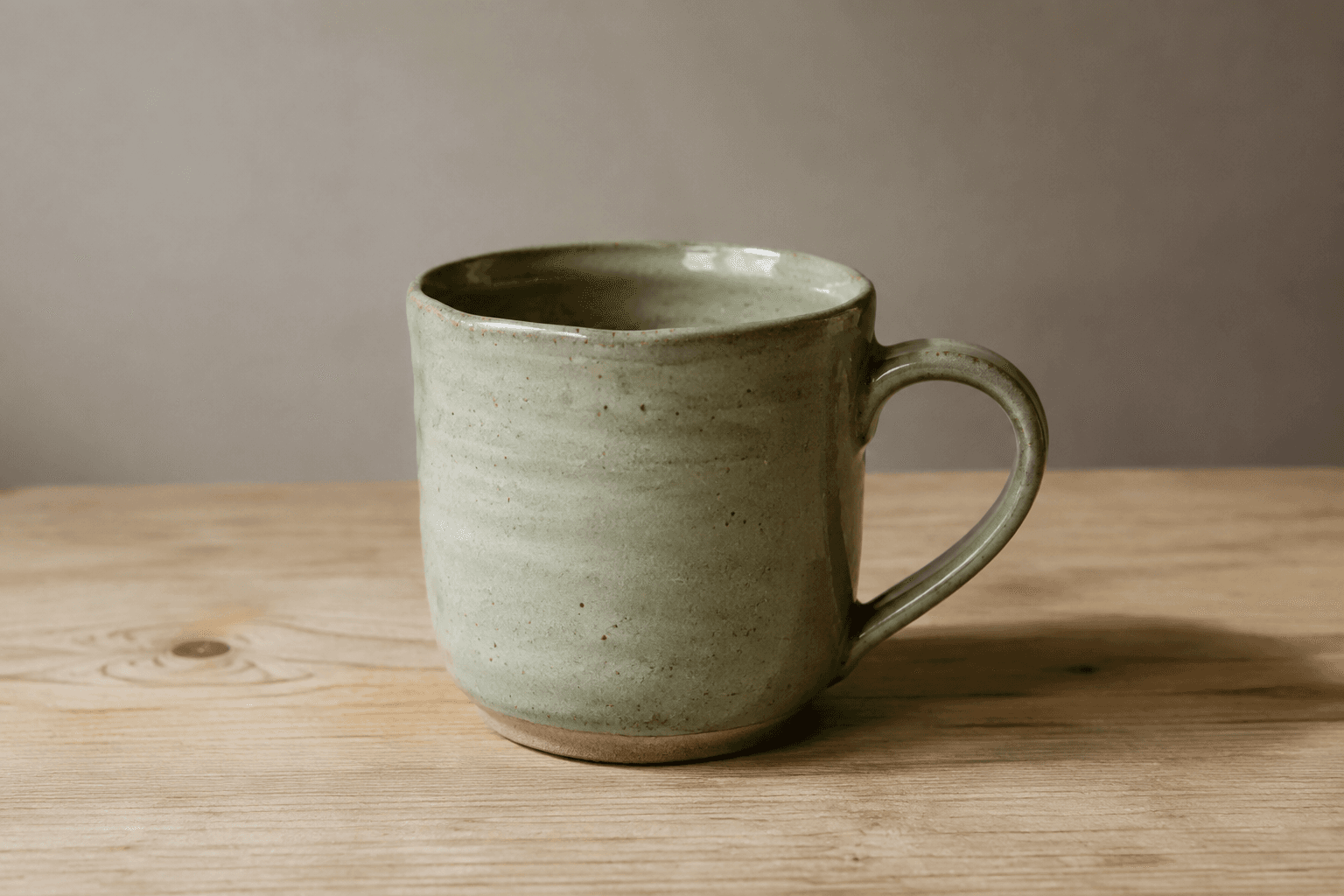
For a mug, inspect the handle opening, rim, and glaze as the shot plays. Compare the moving outline with the original photograph.
Use an end frame when the finish matters
Choose the finish in relation to the next thing the viewer will see. If the product clip leads into a still photograph on a listing, a similar final composition may make the handoff easier to assess. If the next shot is much wider, avoid forcing the first clip to reveal every detail before that cut. The end image gives the AI product video generator a specific reference to work toward.
Product Agent's Single workflow accepts an optional end-frame image. Use it when you have a specific finishing composition to provide, such as a second view prepared for the same product. Compare the starting and ending images before submitting: the more they disagree about the product or setting, the more change the generated transition must attempt.
An end frame is a reference for the finish, not a promise of an exact path between the pictures. A front-facing bottle and an unrelated overhead arrangement leave a great deal to resolve. Start with compatible views when you want a restrained showcase and inspect the middle of the clip as carefully as its endpoints.
Look for continuity in physical contact as well as shape. A mug should remain convincingly connected to the surface beneath it, and a cap should stay attached to its bottle unless the intended scene calls for removal. If a transition introduces a floating edge or a changing gap, note where it occurs. A frame that looks acceptable alone can still be distracting when it meets the next frame in motion.
If the requirement is a written camera or movement instruction, use Image to Video. That mode accepts your own prompt, while Product Agent prepares its own. The two inputs serve different needs; a custom prompt cannot be added to Product Agent just by placing it in a filename or an image caption.
Approve the footage for its actual use
Review the AI product video generator result once for recognition and once for use in your layout. On the first pass, look for changes to the product's silhouette, label, proportions, or parts. On the second, check whether the clip leaves space for the text and crop you plan to add elsewhere. A product can remain recognizable while being framed too tightly for a particular placement.
Keep visual presentation separate from evidence about performance. A generated bottle beside water does not prove water resistance. A glowing surface does not demonstrate a skincare effect. Use the footage to present visible appearance and put supported factual claims into the finished content through your normal review process.
For several SKUs, move to the batch product workflow after you understand the first result. If your next job is an opening shot with a hook and an offer, the ad-clip workflow explains what to generate and what to finish in your editor.
Before your first product generation
Do I need to write a commercial prompt?
No. The AI product video generator uses Product Agent to prepare the prompt. Supply the product photo, select duration and resolution, and generate. Choose Image to Video if you want to describe the motion yourself instead of using this automatic preparation.
Will the product text and logo stay exactly the same?
Exact preservation is not guaranteed. Check each AI product video generator result against your source photo, particularly when letters are small or the viewpoint changes. Approve only footage that represents the product correctly; keep required brand marks and factual copy under your control in the final edit.